

Short, ambiguous UI strings like "Name", "Post", or "Run" are the biggest problem in localization. Is “Post” a button to publish content or a forum message? Without context, translators and AI models are forced to guess, which leads to broken UI translations and endless QA review cycles.
Instead of manually typing out context descriptions for thousands of keys, you can now delegate this entire process to your local AI Agent (like Cursor, Copilot, or Claude Code).
By leveraging the new Crowdin CLI context management commands and Crowdin Skills, your AI agent can automatically download your translation keys, analyze your codebase to understand what those keys do, generate precise context descriptions, and push them back to Crowdin.
Based on the core workflow introduced in Context Enrichment with AI Agents, this step-by-step guide will show you how to configure and deploy this automated, agent-driven setup directly in your local terminal.
Step 1: Install Crowdin Skills for AI context extraction
To allow your AI agent to manage your localization context, you need to equip it with the necessary capabilities using Crowdin Skills. These skills provide the agent with documentation and guidelines on how to format descriptions and interact with the Crowdin CLI.
Run the following command in your project terminal, where your AI agent can see it:
npx skills add crowdin/skillsThis single command installs two essential skills:
crowdin-context-cli– teaches your agent how to use the new CLI commands (context download,context upload) and how to read/write Crowdin’s line-delimitedJSONLformat.context-extraction– instructs the agent on the engineering rules for good context. It teaches the AI which strings need attention (ambiguous short words, UI labels, buttons) and how to write concise 1-3 sentence descriptions explaining their exact UI placement.
Step 2: Automate context extraction inside your IDE
Once the skills are installed, you don’t even need to run the CLI commands manually. You can simply prompt your AI agent to handle the entire lifecycle. Because the agent has access to your local codebase and knows its new “skills”, it can scan your components, see exactly where a string is rendered, and generate highly accurate descriptions.
What the AI agent will do autonomously behind the scenes
-
Download: The agent triggers the CLI to fetch all empty strings into a temporary file:
crowdin context download --status empty(This creates a local
crowdin-context.jsonlfile containing only the strings that require descriptions). -
Enrich: The agent parses the file line-by-line, looks at your source code to find where those strings live, and writes 1–3 sentences explaining the layout.
-
Upload: Once finished, the agent pushes the completed file straight back to your Crowdin project:
crowdin context upload
Step 3: How to audit your context coverage via CLI
As a developer, you can monitor and audit the quality of your translation context directly from your terminal using additional context commands.
To get a quick birds-eye view of how much of your project is ready for context-aware translation, run:
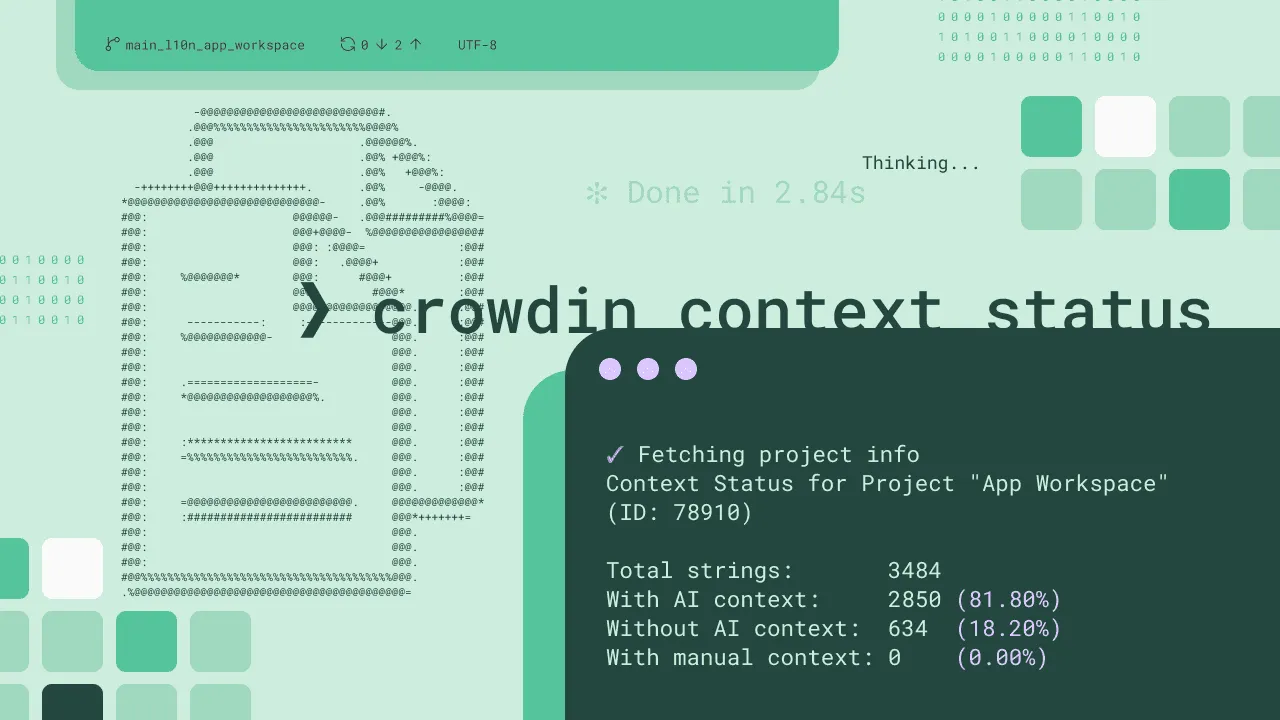
crowdin context statusCLI will return a complete breakdown of your project’s health:
✔️  Fetching project infoContext Status for Project "App Workspace" (ID: 78910)
Total strings: 3484With AI context: 2850 (81.80%)Without AI context: 634 (18.20%)With manual context: 0 (0.00%)Troubleshooting and resetting context
If you ever feel the AI agent made a mistake or your UI layout changed drastically, you can safely wipe out the automated descriptions while preserving your human-written notes by running:
crowdin context reset --allConclusion
Automating localization context completely eliminates manual translation review cycles. Whether your project relies on professional human translators or uses a fully automated AI localization setup, this workflow is a game-changer:
- For human linguists, it provides translators with instant clarity regarding UI placement, reducing endless Q&A loops and preventing broken layouts before they happen.
- For automated AI localization, it is absolutely essential because AI engines cannot guess intent. Feeding them an enriched, code-level context is the single best way to reduce translation errors to zero.
By combining the Crowdin CLI with Crowdin Skills, you don’t need to manually type out descriptions for UI components or run tedious extraction scripts. Your IDE’s AI agent handles the entire cycle autonomously, keeping your localization precise without slowing down your deployment velocity.

Andrii Bodnar
Andrii Bodnar is an Engineering Manager at Crowdin, with 9 years of experience in developing localization software. He’s passionate about open-source, i18n, the JavaScript ecosystem, and various Web frameworks.