

Software translations are often full of all sorts of mistakes. If you are speaking another language besides English, you have probably rolled your eyes at a weird or out-of-place text in an app at some point. “Oh no, couldn’t they have found proper translators?” you might have thought to yourself. The thing is, the app’s creators probably did find the specialists. And the problem is not that they are using just machine translation results without human edits. The problem is the lack of context.
Having context is important to provide accurate translations. When it comes to UI, tackling the text without one might become especially challenging. It only seems that it might be easier because often the text is quite short. But without context in translation, this shortness makes it even tougher. How do translators know whether in this particular place ‘Home’ refers to the main navigation menu, a user’s physical residence, or perhaps the starting point of a process? A word without a context can be anything.
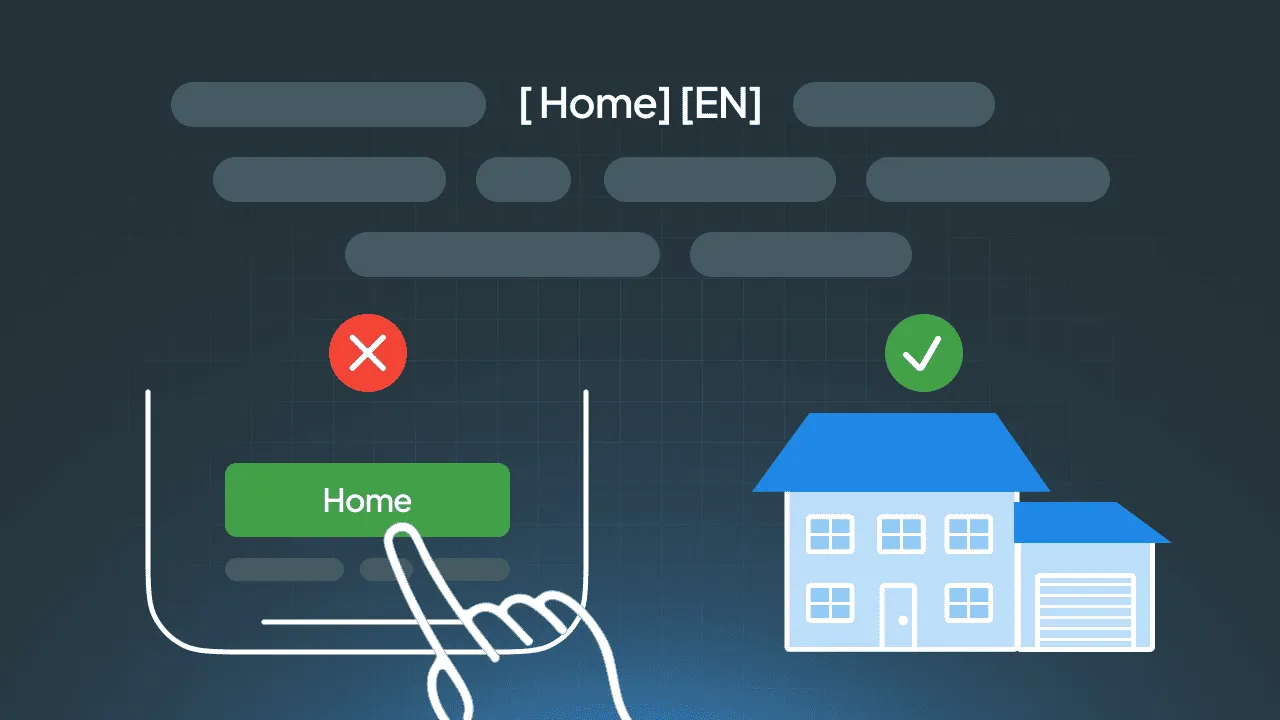
Without seeing the UI in its full context, translators may misinterpret the meaning or usage of a string, whether it’s labels, buttons, or error messages. They often do.
The good news is that this can be fixed with localization tools that help to marry translation and context. In this post, we will be showing a few of them.
Crowdin In-Context for Your Translation Accuracy
Crowdin In-Context is a powerful tool for localizing web applications. It allows translators to work directly within the app’s interface, giving them a live preview of how their translations will look in the actual app. This makes it easier to get the context right and avoid mistakes.
With in-context localization, translators can see exactly where each text string appears as it overlays the initial text. This helps create translations that fit naturally and look good on the UI. In-context requires minimum setup – only a snippet of code added to the website.

In-Context tool will be especially useful if a translator works with frequently updated materials, such as landing pages for promotions or blog posts.
Want to see how does In-Context look like?
WYSIWYG for DOCX, HTML, MD, TXT Files
Another powerful feature Crowdin offers is “What you see is what you get”. WYSIWYG gives translators a real-time, formatted view of content across multiple file types. This feature ensures formatting consistency and provides full context for more accurate translations.
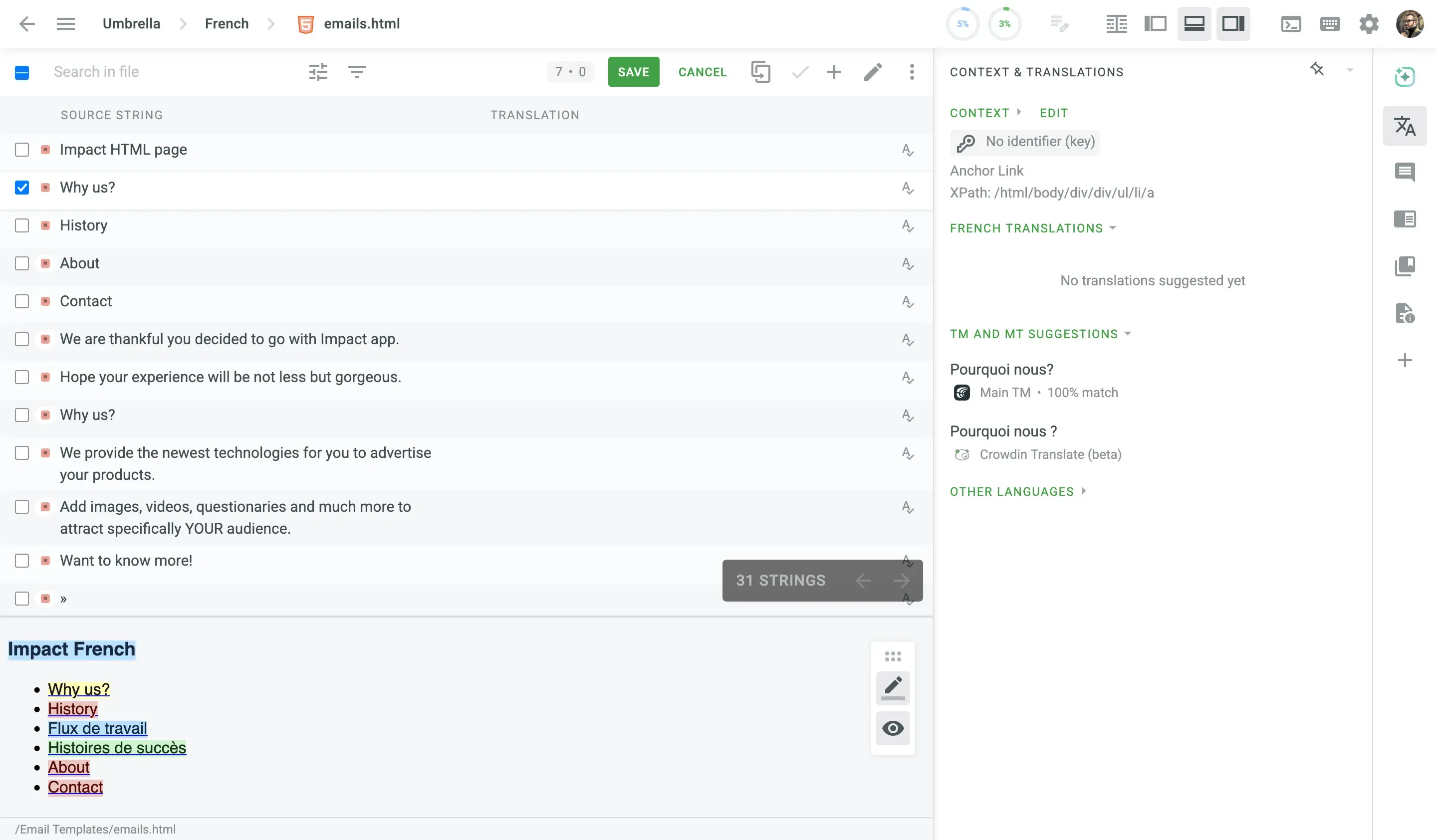
Context for a File and a Separate String in the Editor
Crowdin has a feature that lets managers and developers add file context from the right side of the editor, making it faster to attach relevant details without leaving the workspace.
With file context, linguists can see extra information (such as text descriptions, links to guides, or explanatory articles) right below the source string. This information is immediately available, ensuring that translators have the insights they need.
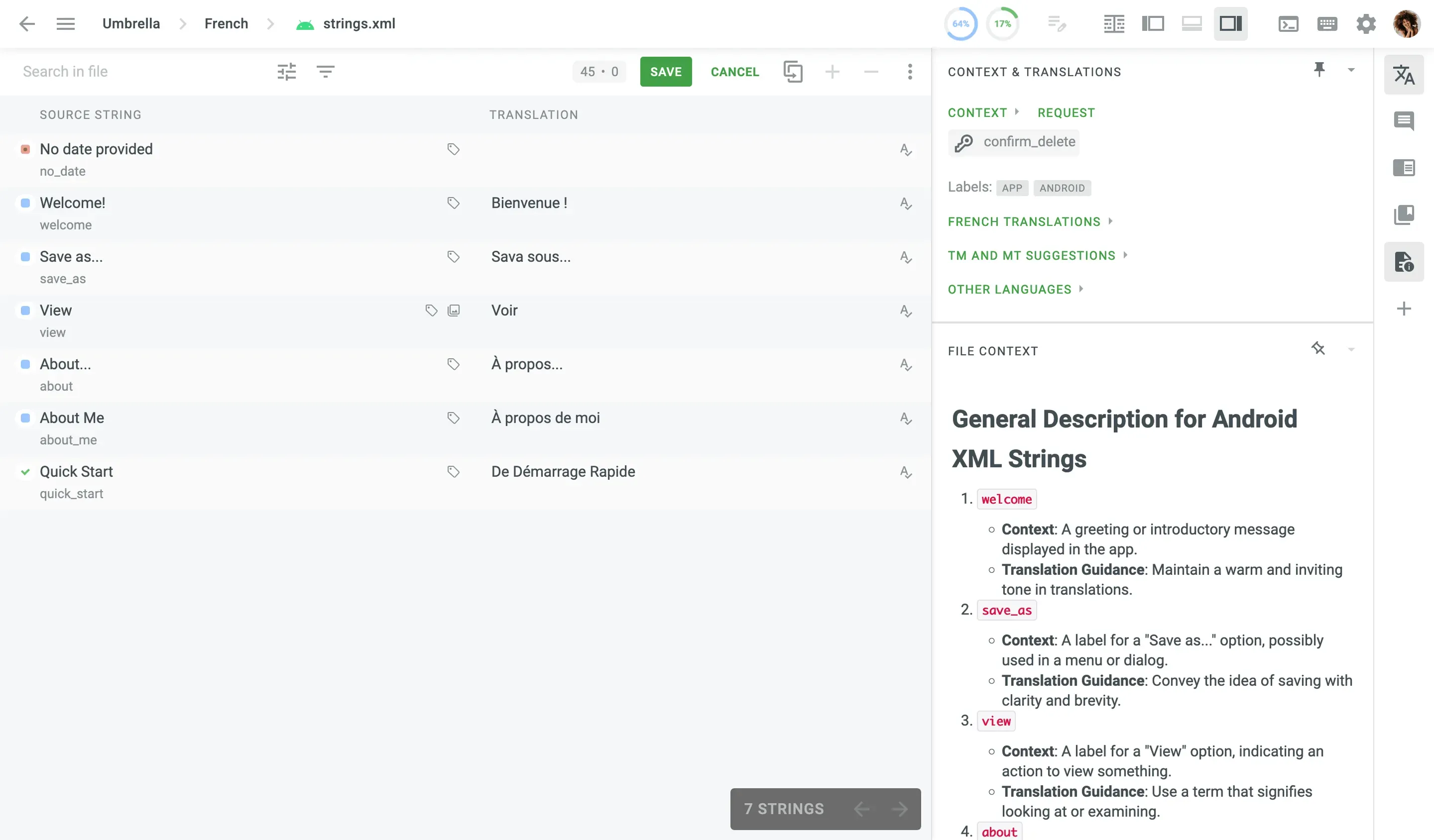
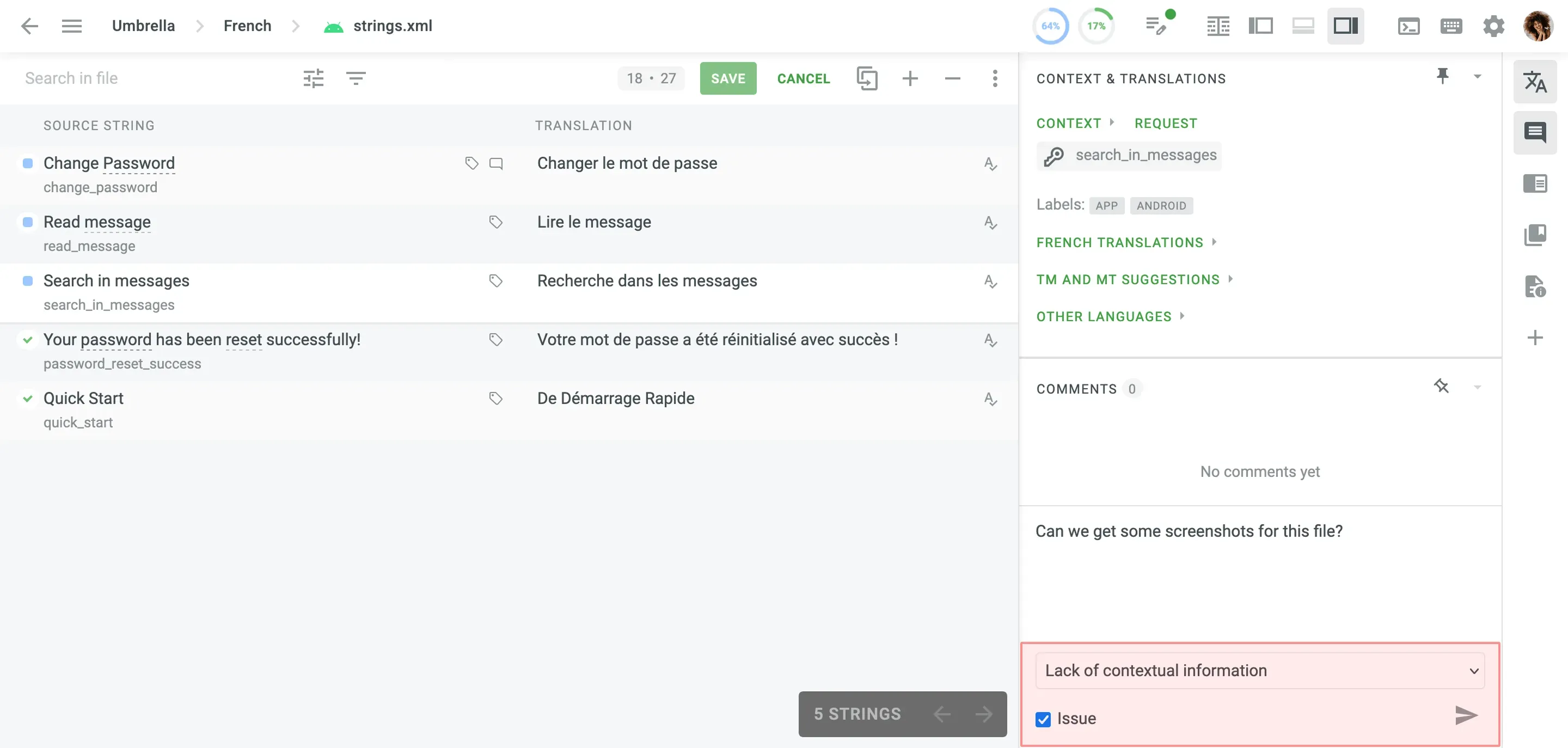
For additional support, translators can use “Request Context” button. It is accessible across all editor modes, making it easy for translators to request more context when needed. They can also use the “View String In Context” option from the String menu to see exactly how a particular string fits within the UI, minimizing any chance of misinterpretation.
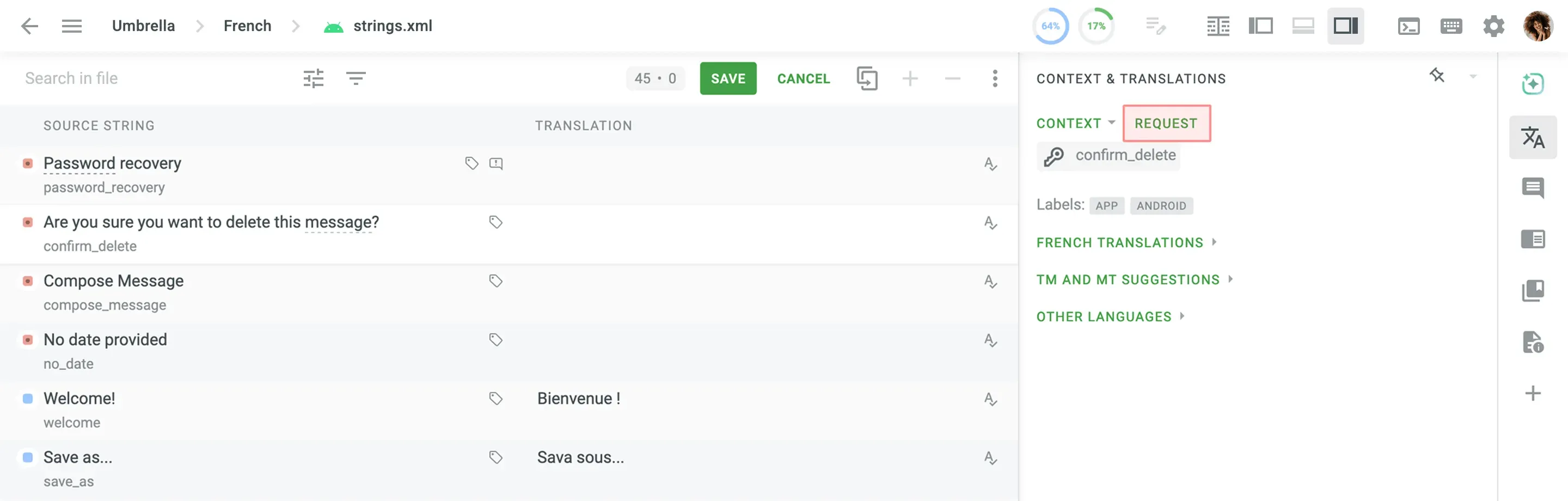
Translators can report issues by flagging strings with “Lack of Contextual Information”, which alerts project managers to add more clarity.
Uploading and Tagging Screenshots
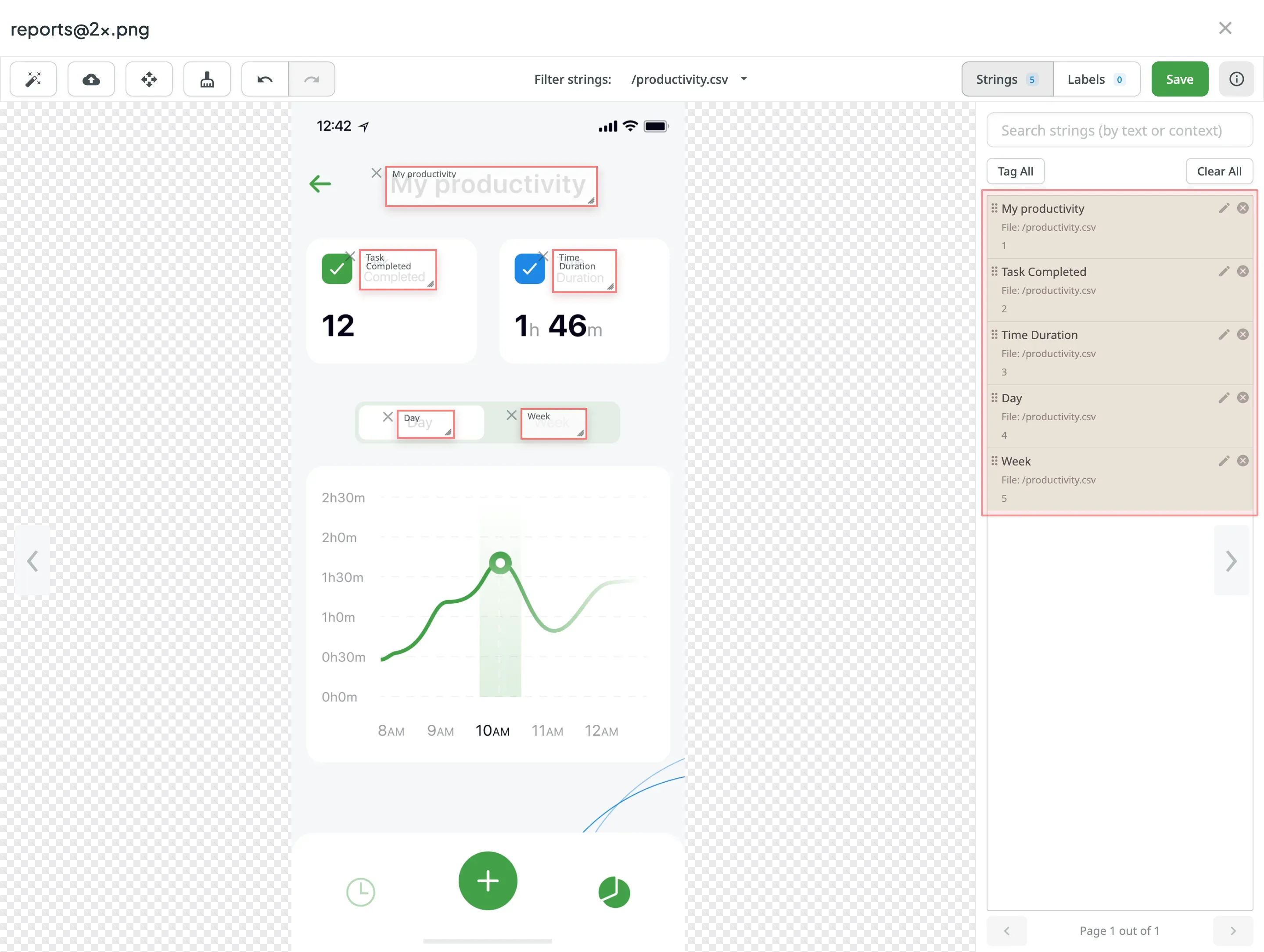
Screenshots play a huge role in providing visual context for translators, particularly for UI localization, where short phrases can have multiple meanings. In Crowdin, uploading and tagging screenshots is a straightforward process that helps translators see where each text string will appear, minimizing errors and ensuring translations align with the design.
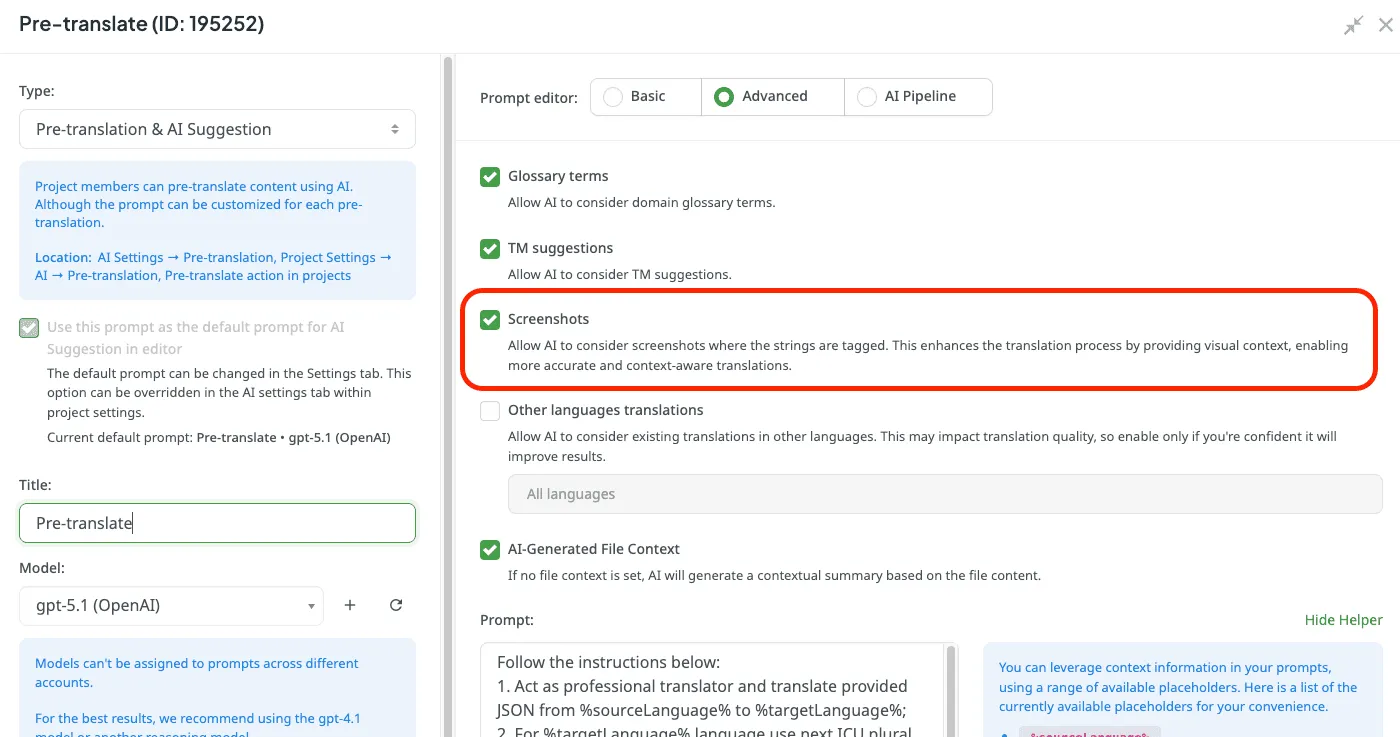
Screenshots can improve AI localization too. If you have added screenshots to your project, you can include them in your pre-translation prompt.
When to use screenshots?
- UI localization. Translating user interfaces often requires knowing whether a term is used in a button, a dropdown, or a label, as this can change the translation. Without screenshots, translators may miss these nuances, leading to awkward or incorrect wording.
- Image localization. Screenshots are needed for images with embedded text, such as app store screenshots, banners, or promotional materials. Crowdin allows translators to localize text within images, ensuring that elements do not break the design in different languages.
Auto-tagging Feature
Auto-tagging screenshots helps quickly provide context in Crowdin. When screenshots are uploaded, Crowdin automatically analyzes and tags them to relevant text strings within the project. This automation significantly reduces the manual work of assigning strings on screenshots, giving linguists a clearer visual reference almost instantly.
Context from the Design
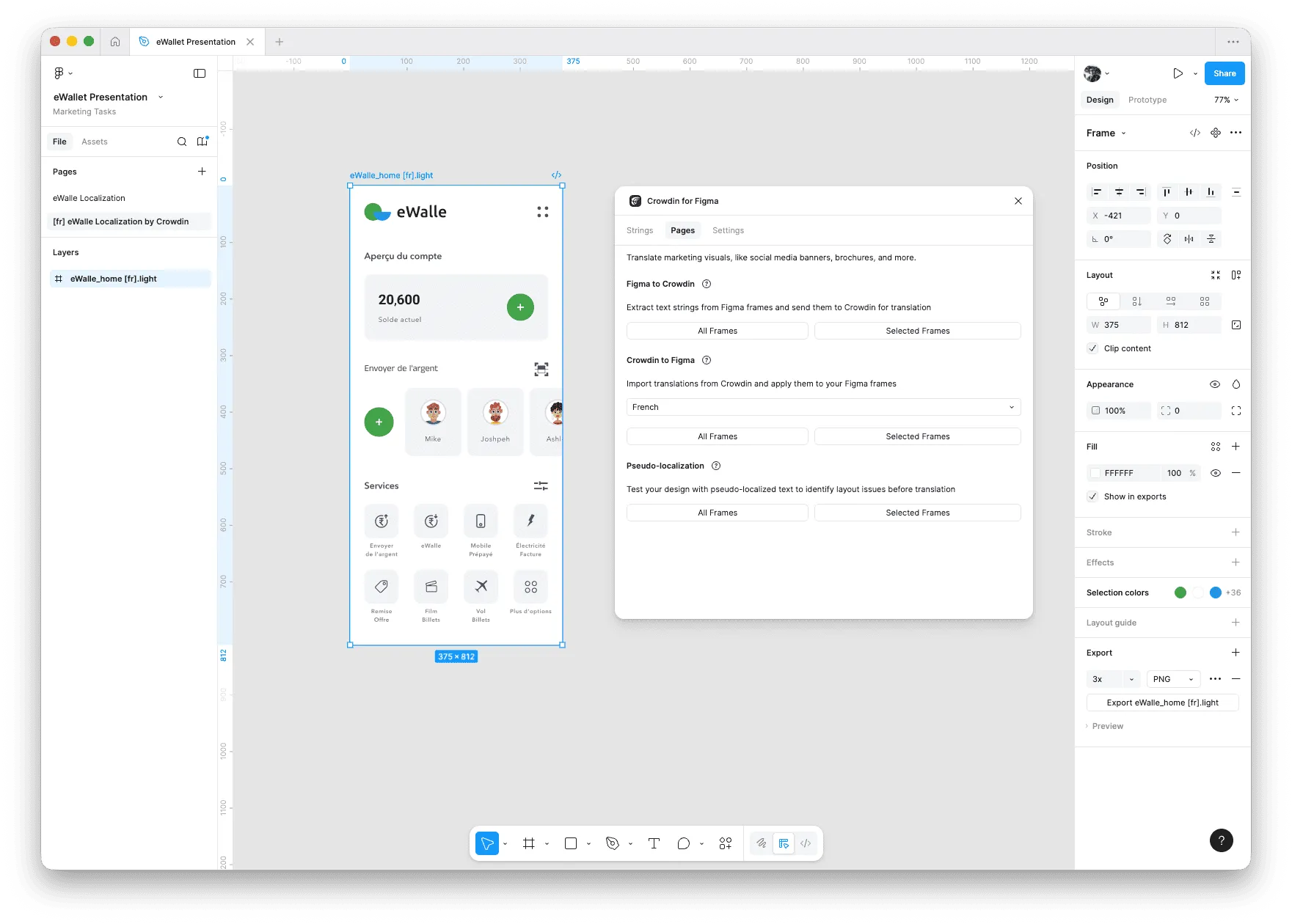
Localization often happens too late in the development cycle, but with the Crowdin plugin for Figma, context is available from the start. This is also called design-stage localization. Instead of translating abstract lists of words, linguists can see exactly where a string lives on the design canvas.
When designers push content from Figma to Crowdin, the plugin automatically creates screenshots and tags the strings.
Other Ways to Provide Context in Crowdin
Context Enrichment with AI Agents
Context Enrichment with AI Agents lets your AI coding agent (Cursor, Claude Code, Copilot, Gemini CLI) extract contextual information for your keys automatically. Using Crowdin Skills and native CLI context commands, your agent downloads your strings, analyzes your codebase to figure out how each key is used, and pushes the generated descriptions back to Crowdin — so both human linguists and AI have more confidence in translating the text.
Learn how to automate i18n context with AI agents for a full step-by-step walkthrough.
Context for Website Localization
Crowdin offers 2 apps to help you get the context you need for website localization. Website Context Viewer helps linguists get context by displaying the actual website page directly in the Crowdin Editor.
Website Context Extractor focuses on automating context for AI. It crawls your website and attaches context to your translation strings. This helps AI provide more accurate translations for your website. Read more about these tools.
Vector Cloud
Vector Cloud is an app that uses a custom vector database to provide specific context for AI translation models. You can upload your old marketing copies, legal documents, brand assets, etc. AI checks your database, analyses the data, and uses it to provide translations. Check this Vector Cloud video overview:
Provide Context for Accurate Translations
Accurate translation is impossible without context. Without context, even the best translators are just guessing.
Whether you use human experts or AI models, providing visual and structural information upfront is the only way to prevent mistranslations.
Localize your product with Crowdin
FAQ
1. Why is context so important in software localization?
Software strings are often short and fragmented (like the word “Open” or “Home”). Without seeing the UI, a translator doesn’t know if “Open” is a button action, a status, or part of a sentence. Context ensures the translation fits the visual space and the intended meaning.
2. Does Crowdin In-Context work with mobile apps?
While Crowdin In-Context is primarily designed for web applications via a JavaScript snippet, mobile developers can achieve similar results by using Screenshots and Auto-tagging. This allows translators to see the mobile UI layout directly in the Editor while they work.
3. How do screenshots help improve AI translations?
Modern LLMs can “see” images. By attaching tagged screenshots to your strings, you can include them in your AI prompts. AI analyzes the visual layout to determine if a term is a heading, a button, or a menu item, leading to much higher accuracy than text-only prompts.
4. What is the difference between In-Context and WYSIWYG?
- In-Context allows you to translate directly on your live website interface.
- WYSIWYG (What You See Is What You Get) is used for files (like DOCX or HTML). It shows a formatted preview of the document structure inside the Crowdin Editor so you don’t break the layout.
5. How much technical effort is required to set up context tools?
It varies by tool. Adding Screenshots or using the WYSIWYG editor requires zero coding. Crowdin In-Context for websites requires adding a small one-time code snippet, while Context Enrichment with AI Agents lets developers wire this into their build pipeline using their AI coding agent.

Iryna Namaka
Iryna Namaka has vast experience in content creation for different spheres and different tech products. She loves to create a clear and consistent brand voice for products that are used globally.