

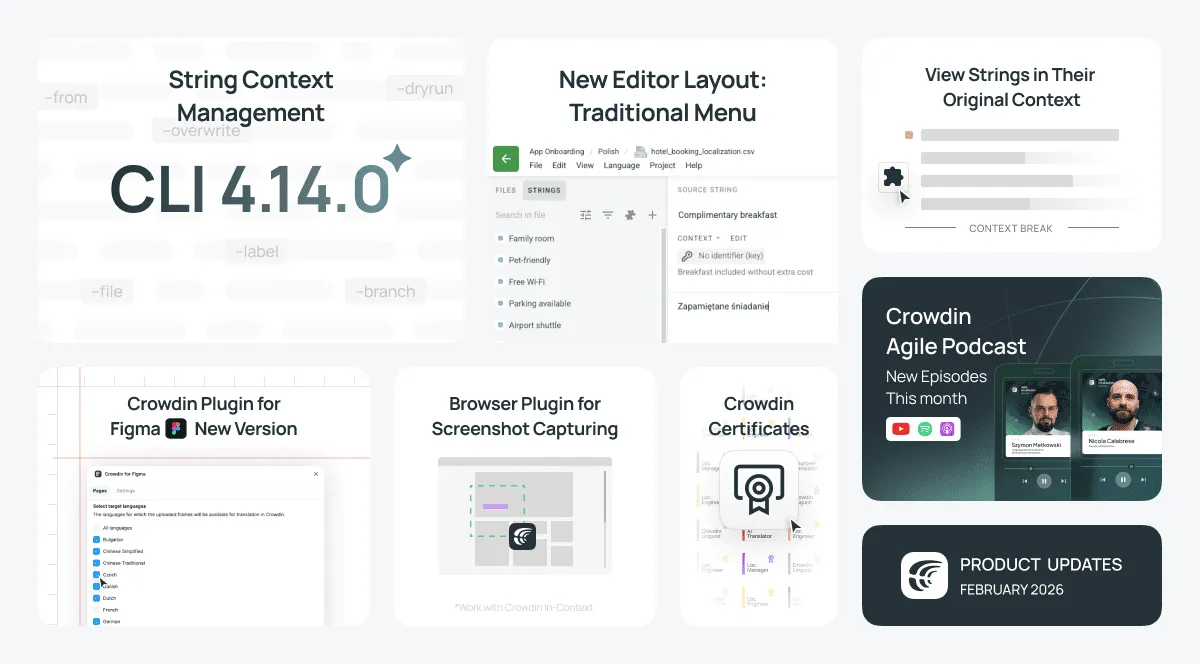
Our release announcements are getting a makeover. Starting now, we’ll be highlighting some features in “What’s New” summaries, while major updates will now have their own separate posts. This shift ensures we can give you more depth and share important updates the moment they drop. Expect the first of these separate announcements to arrive in just a few days!
This February, we released Crowdin CLI 4.14.0, which uses AI and our new Crowdin Skills to pull context directly from your code. This helps translators or AI understand exactly what they’re working on without the guesswork. We’ve also launched the Crowdin Certificates app—a new way to prove your expertise based on your actual work on the platform, not just theory.
Beyond these updates, we’ve introduced a Screen Capture extension to make managing screenshots easier and a new traditional menu in the Editor for a more familiar layout. You’ll also find new apps like Langbly MT and Google Private Drive in the Crowdin Store, along with several updates to our Figma plugin.
Crowdin CLI 4.14.0: string context management
When localizing UI, the best thing you can give a translator — human or AI — is the information from the source code about where a string actually lives: what component renders it, what triggers it, what surrounds it. Crowdin already has a Context Harvester for extracting that, but we’ve been closely watching its adoption. It’s opinionated about how context should be extracted, making it less effective for edge cases that are actually common in enterprise projects. It also requires the developer running it to have direct API access to whatever LLM the company uses — a real barrier in environments where AI tooling is centrally controlled.
So we expanded Crowdin CLI instead. It’s a tool developers already have, already trust, and in enterprise environments, already have approved.
Crowdin CLI 4.14.0 introduces a new crowdin context command group. The workflow is intentionally simple — and the CLI doesn’t do extraction itself. That’s deliberate. Your team’s AI agent is better positioned to understand your specific codebase than any opinionated extraction tool we could ship. To give your AI access to Crowdin knowledge, including best practices, common pitfalls, and configuration patterns, we created trying our new Crowdin Skills (a suite of reusable patterns for AI agents created to teach them to work better with Crowdin)
The Workflow
The process begins by equipping your AI agent with Crowdin Skills, which teach it how to handle Crowdin data and write high-quality descriptions. Once set up, the workflow is straightforward: you use the CLI to download your project’s strings into a local JSONL file (great format for AI agents to work with). Because your AI agent has access to your codebase, you simply ask it to fill in the missing details. The agent analyzes the code to understand the string’s purpose and adds concise descriptions. Finally, you upload the enriched file back to Crowdin to provide human translators or AI with the clarity they need.
An important detail: the CLI separates manual context from AI-generated context. When you upload, the AI only extends the context — it never overwrites anything a human added. If you want to start over with AI-extracted context (say, after a major refactor), crowdin context reset removes all AI-generated context while leaving manual context intact. You can reset selectively by file, label, branch, or CroQL — or pass --all to reset everything.
The release also includes export_languages support in the config file, an --exclude-language option for pre-translate, source file existence validation in config lint, and a few other improvements. Full changelog: CLI 4.14.0 and tutorial on context enrichment with AI Agents and Crowdin Skills are already available.
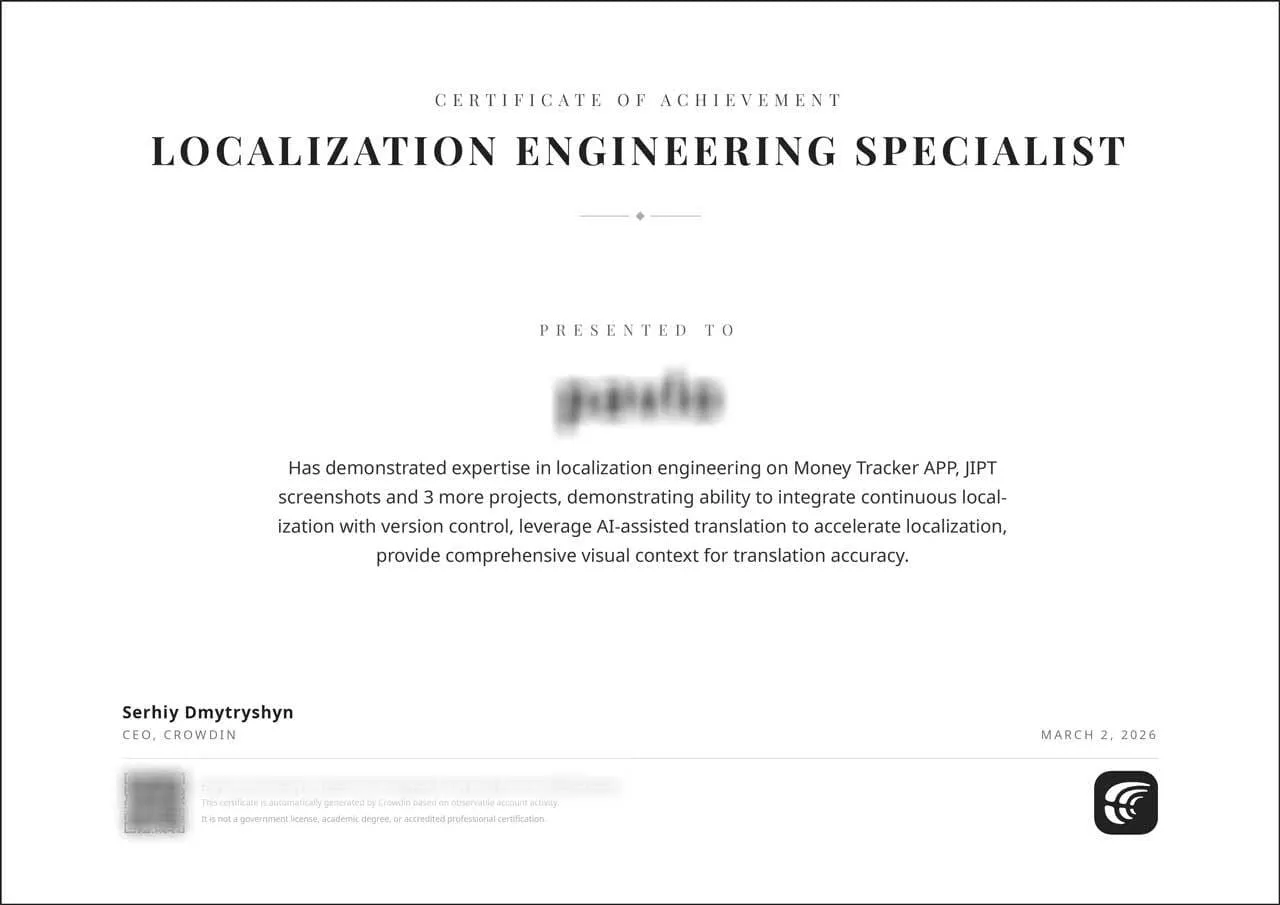
Crowdin Certificates
A typical certification proves you studied the material. The new Certificates app in Crowdin analyzes your actual platform usage and certifies the skills it can observe. The certificate proves you did the work.
There are five certificate types. For translators: AI Translation Specialist, Crowdin Linguist, and Volunteer Translator. For project managers: Localization Engineer and Localization Manager. Once earned, these certificates can be added to your LinkedIn certifications or shared as a professional post. You can find the installed app and track your progress directly in your Profile Settings. Available only in Crowdin; for Crowdin Enterprise, please view the Volunteer Certificates app.
Browser plugin for screenshot capturing and maintenance
We’ve been “eating our own dog food” lately. While localizing a specific section of the product, we found that our automatic screenshot management wasn’t a great fit for that particular part. Since there were only a few screens, we decided to capture them manually.
The operating system’s default screenshot tool produces unhelpful filenames; someone has to remember which screens were captured and constantly keep track of which screens still need to be captured. What is most scary is knowing that the product changes rapidly and we would need to redo screenshots from time to time, then again rename files, and upload to Crowdin.We quickly reminded ourselves why we built automations in the first place—manual capturing is far from pleasant.
So we built a Screen Capture, Chrome plugin to help with this.
If you localize UI, the plugin can live in the extensions section of your browser. It lets you select the entire page or a part of it to screenshot with just one click. And it automatically suggests a useful name for the screenshot — either the page title, URL, H1, or anything that would give a human a clue when managing thousands of screenshots.
The plugin is most useful when maintaining screenshots. You still have to remember to update screenshots when your app changes, but when you visit the page where UI has been changed, you either click an existing screenshot and then click the page (or page element), or just select the element, and the plugin finds the existing screenshot to update.
If you localize the web UI, we still encourage you to integrate automatic screenshot collection. If that’s not possible, this plugin is the second recommended workflow.
Localize your product with Crowdin
New Editor layout: horizontal menu
For everyone who already has a project in Crowdin and has used the Editor, it’s familiar that the menu (with file selection, languages, projects, and editor views) is available on the left as a dropdown after clicking the menu icon.
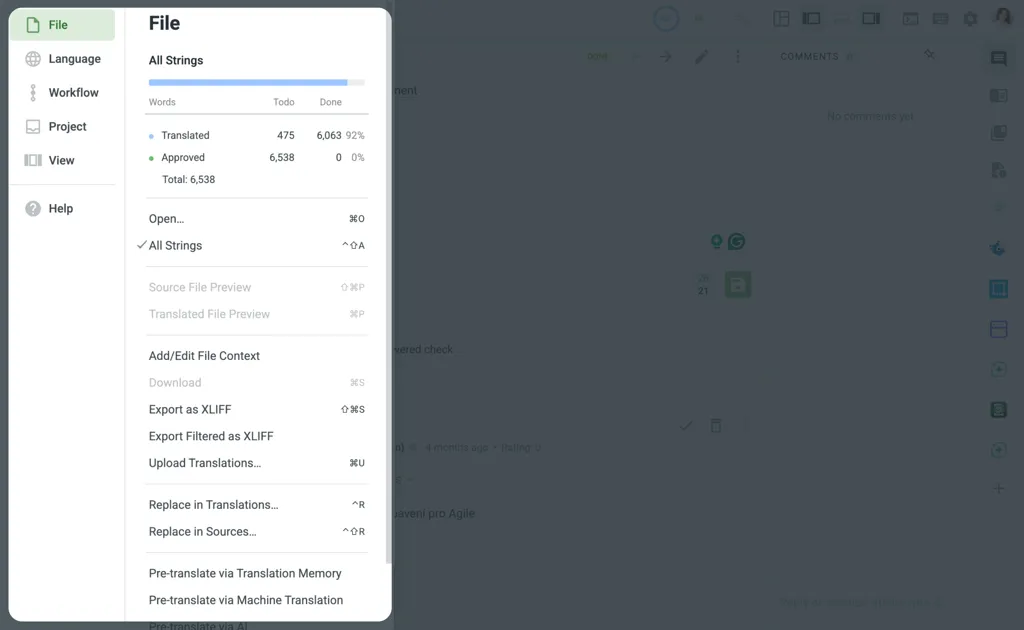
However, starting a few days ago, the default for new users has changed—specifically, to a horizontal menu at the top of the Editor. It’s actually more intuitive and familiar to most people. And there is a good chance that if you’re an old Crowdin user, after switching to the new menu, you’ll never go back to the old one.
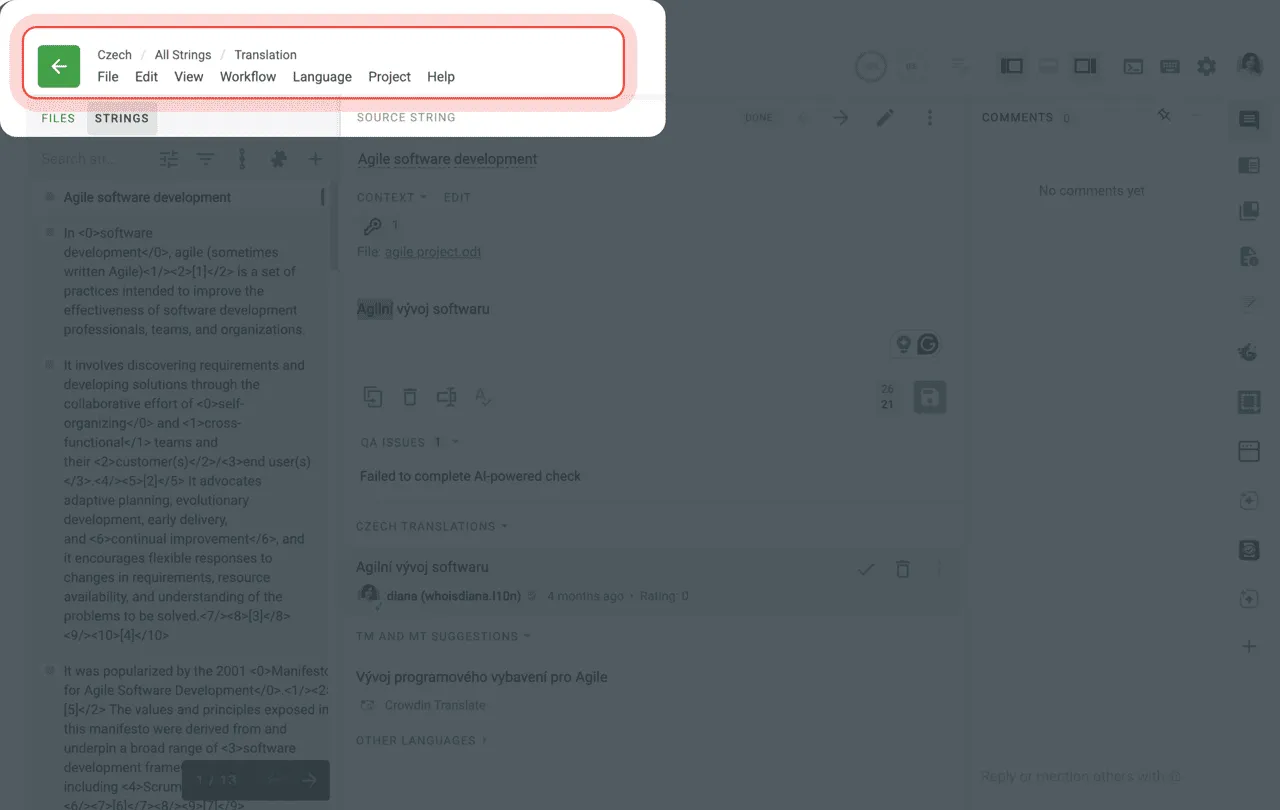
To enable it, you need to go to Editor > Settings > Appearance > Horizontal menu.
We hope the new menu look will be clearer and more convenient for you! Let us know your thoughts.
Big picture: view strings in their original context
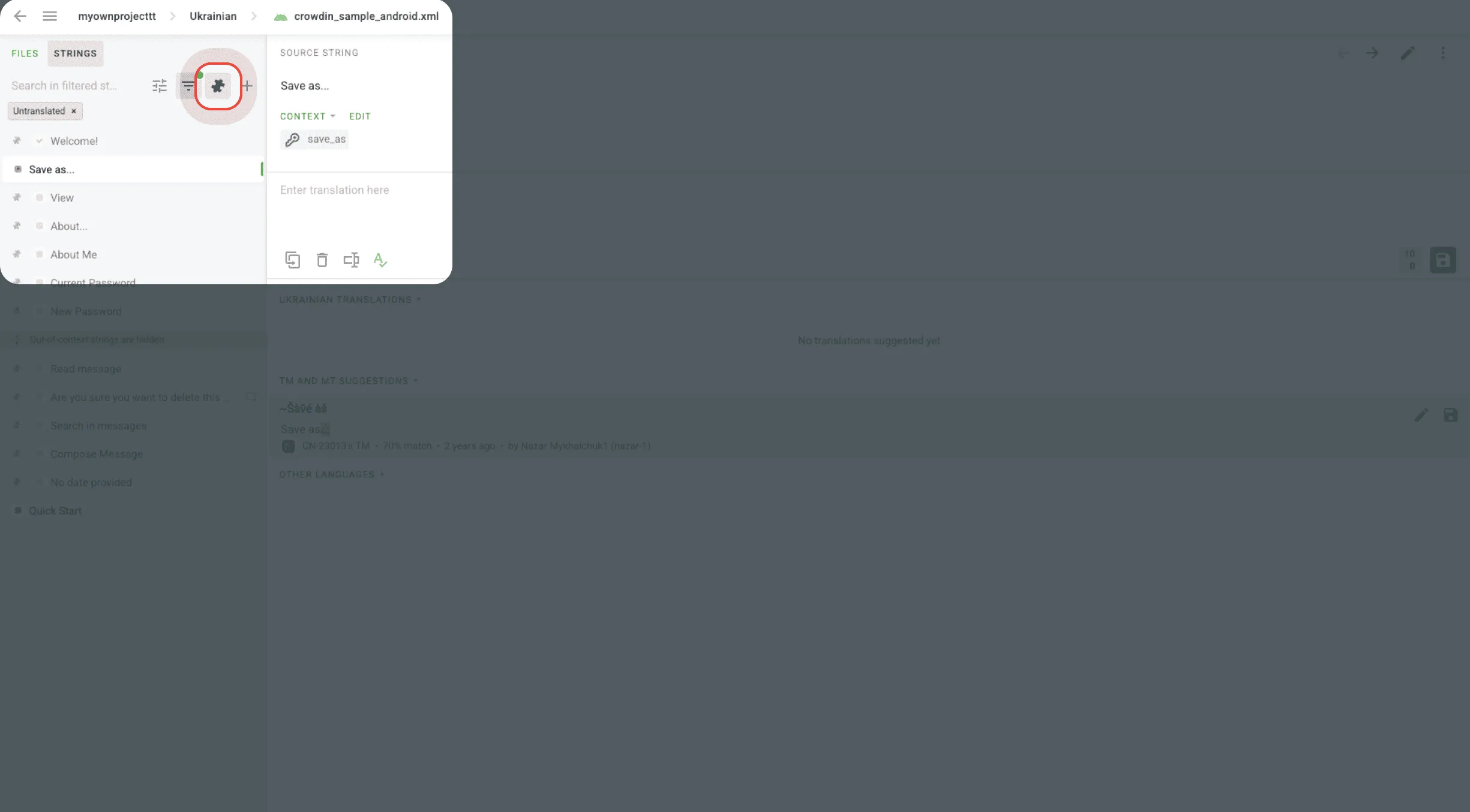
The next feature is the ability to view strings in context (via the new puzzle icon in the Editor).
It’s really useful for those cases when you don’t have enough context for a specific string—for example, if you followed a direct link from an email notification about an issue related to this string, or if you’re working on a task where not all strings from the document are included.
By clicking the puzzle icon, you can see your string in the context of its “surrounding strings,” giving you the extra information you need to translate accurately.
To keep your workspace organized, any strings that are not part of your assigned task will appear slightly greyed out. These strings are read-only, meaning you cannot modify their translations or interact with them. This will prevent any accidental edits to content outside your current scope.
Localize your product with Crowdin
Crowdin Store
Langbly Machine Translation
Langbly is a new LLM-powered translation engine now available as a Machine Translation app on Crowdin. It supports 100+ languages with natural-sounding output that goes beyond traditional neural machine translation. Langbly is a drop-in replacement for the Google Translate API, making it easy to switch. With pricing starting at a free tier of 500K characters/month, teams can significantly reduce their translation costs while getting better quality.
Google Private Drive
The main difference with the new Google Private Drive app is that you can now translate your docs without having to share them first. While the previous Google Drive app required you to share files to make them accessible, this new version lets you work with your personal documents while they stay strictly private. It’s a much more secure and faster way to sync content since you don’t need to mess with sharing settings anymore.
Bulk update for connectors: a faster way to sync your content
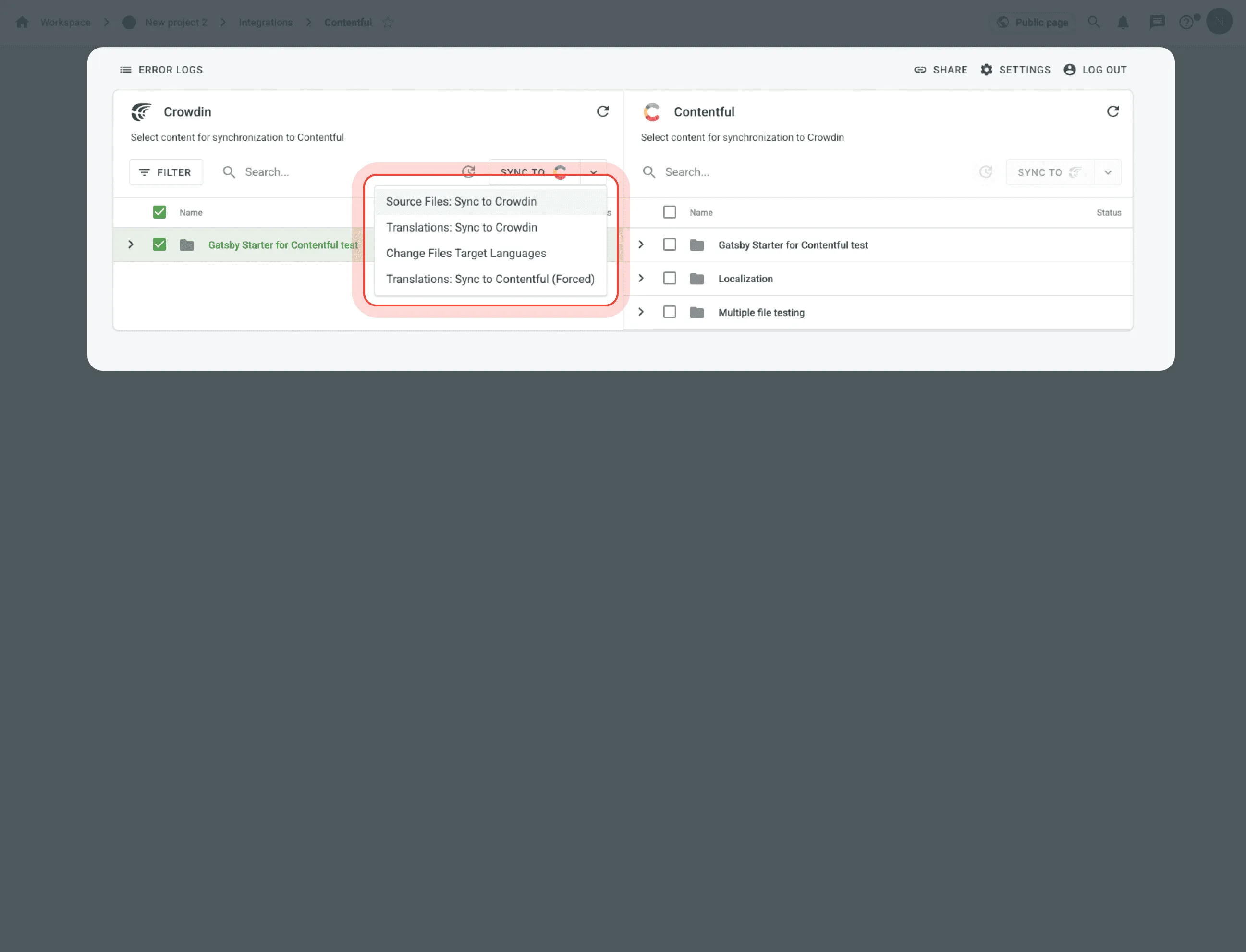
Managing content in connectors like Storyblok, Contentful, or Salesforce just got a lot faster. Previously, if you wanted to update files already imported into Crowdin, you had to manually expand the right panel, find the specific files, and sync them, which was quite time-consuming for large projects.
Now, you can do this directly from the left panel where your synced content is shown. Just select the files or folders you need, click the arrow next to the “Sync to Crowdin button”, and choose “Update selected files.” It’s a much quicker way to keep your content up to date without all the extra navigation.
Figma: target language selection for uploads
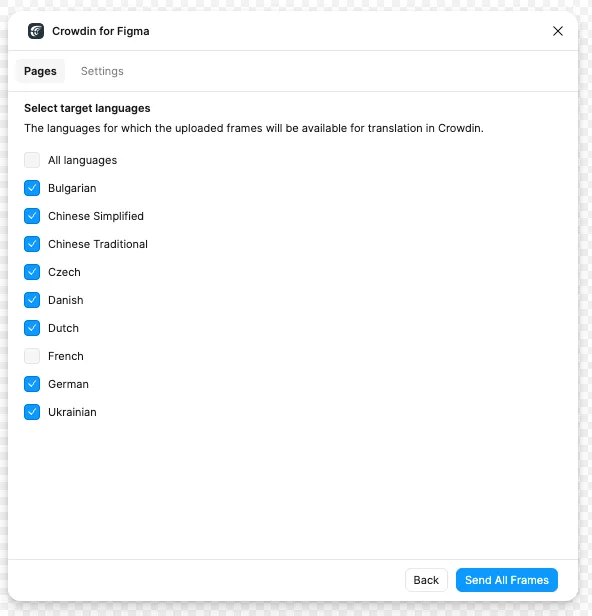
Crowdin plugin for Figma just got an update. In version 99, we’ve introduced more granular control over your localization workflow in Pages mode. You can now select specific target languages when uploading content to Crowdin, ensuring you sync only what’s necessary.
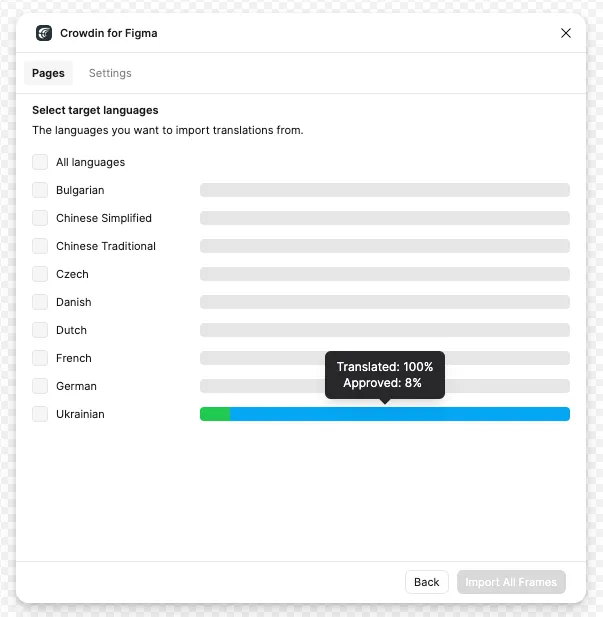
On the download side, we’ve made it easier to bring translations back: you can now select multiple languages at once and track their real-time translation and approval progress directly within the plugin before pulling them into your designs.
Smaller but handy updates
This February, we’ve had a few smaller features and news, like:
- Task-level filtering to workspace Translation cost reports. You can now track costs more precisely with included task names, IDs, and dates. [Crowdin Enterprise]
- We are gradually rolling out the ability to delete integrations created by other team members across all apps. This ensures they remain manageable even if the responsible manager is unavailable and hasn’t shared access. Please note: Deleting an integration will erase its settings.
- Node @crowdin/n8n-nodes-crowdin has been approved by the n8n team and is now part of verified nodes.
- Added support for Material MkDocs custom admonitions.
- Crowdin Enterprise is now available in Catalan.
Agile Localization Podcast
We also released two new episodes of the Agile Localization podcast this month, featuring insights from industry leaders. We spoke with Nicola Calabrese about globalization management and scaling products internationally, and with Szymon Metkowski about the role of technology and agile processes in modern localization. Both episodes are now available on platforms for you to listen to.
External tools updates
New format of updates releases
As we shift to our new announcement format, remember that while these “What’s New” summaries will keep you up to date on general improvements, our major releases will now have their own dedicated spotlight. In fact, our first standalone announcement is just a few days away—don’t miss it!
Localize your product with Crowdin
