

Strings reach Crowdin one at a time, sorted by file, without the screen they came from. Translators see them that way, and so do AI models.
A screenshot gives that screen back: upload one, and Crowdin tags every string visible on it. The new generate-screenshots skill automates screenshots for localization: your AI coding agent takes them for you – across web, mobile, and desktop apps – and keeps them current after every release.
Why visual context matters – for translators and for AI
For example, in Headway, the learning app by Headway Inc, “Continue” heads the Library section with the summaries you’ve already started. In onboarding, it’s the button to the next screen. In Spanish, the first becomes “Seguir leyendo” (“Keep reading”) and the second “Continuar”.
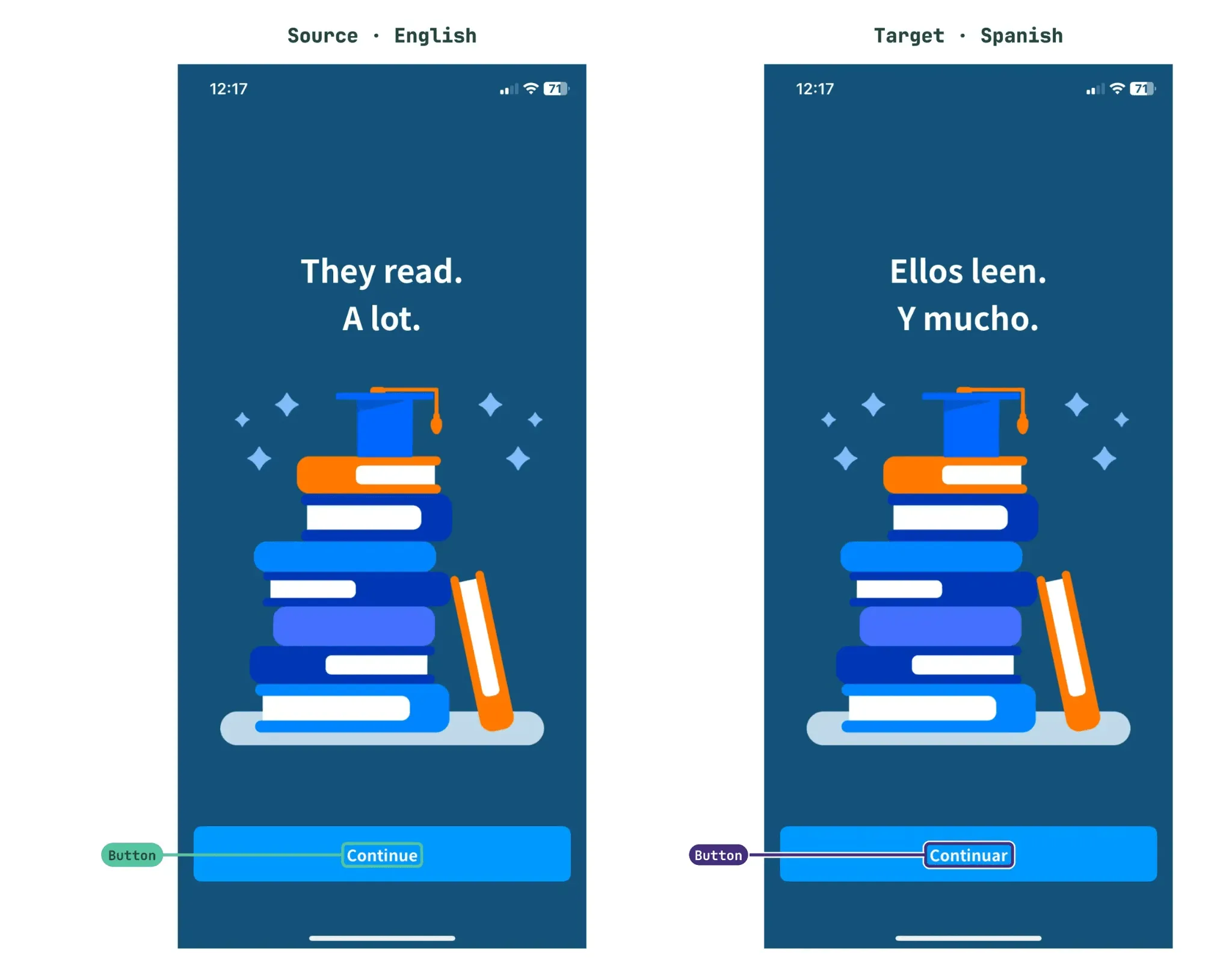
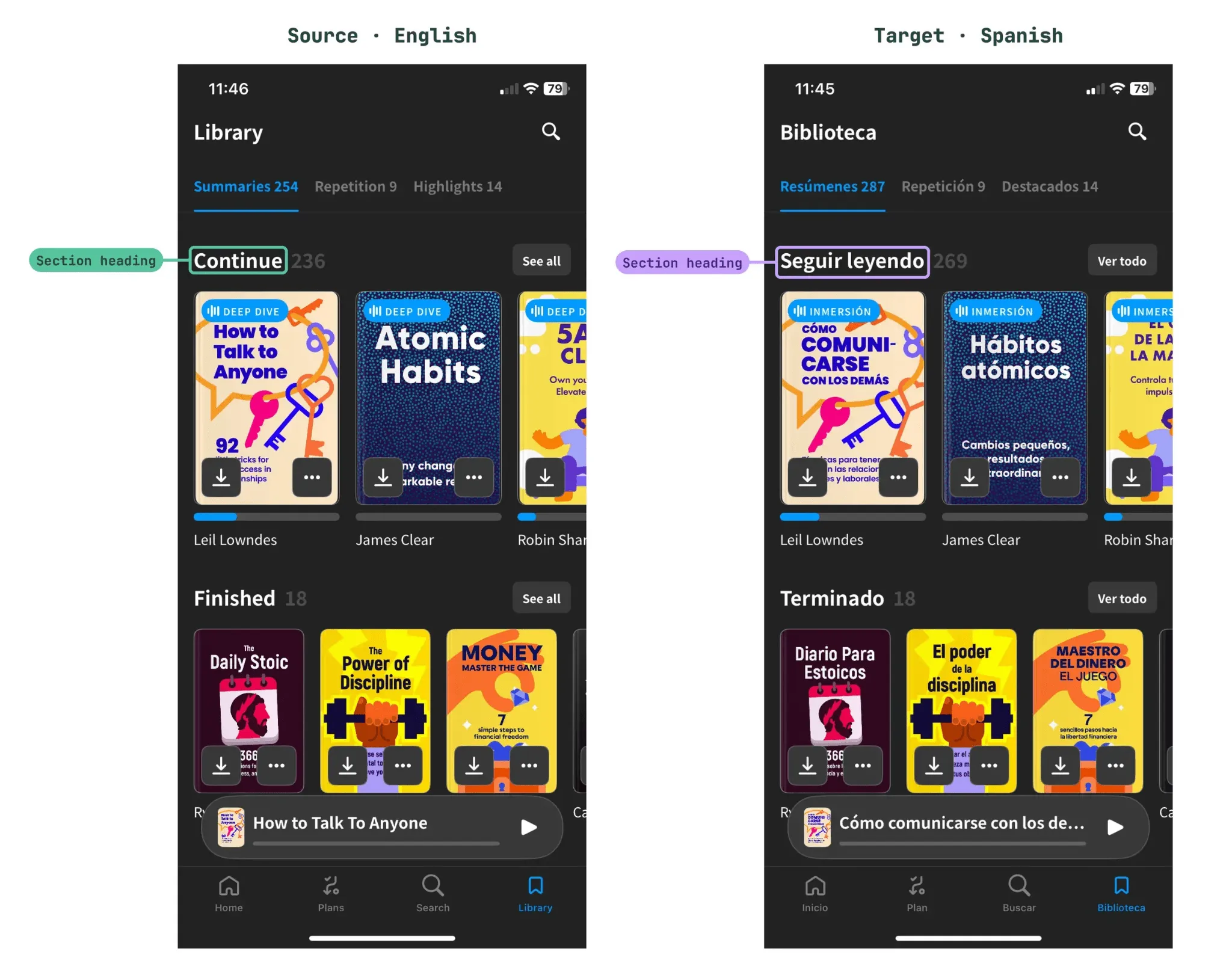
Without the screen, a translator has to guess which “Continue” this is, and so does an AI model. The difference is that a translator can ask in a comment, while a model picks an option and moves on – across thousands of strings in one run.
A good model with nothing to go on will still guess, so almost everything we’ve built is about telling it what each string actually is.
At Headway Inc, a string like “Continue” with no screenshot gets flagged for a person to decide. Read the full story in the Headway Inc case study. In Crowdin, one screenshot serves both readers: translators see the tagged string on the screen in the Editor, and AI translation can use the same screenshot as visual context.
Why most projects still have so few screenshots
Teams know screenshots improve translation accuracy, but making them by hand is slow: someone opens the app, walks through every screen, names and uploads each file, and checks the tags, then does it again after the next release. The hardest states, like a validation error or the confirmation dialog before an account is deleted, rarely get captured at all.
Meet generate-screenshots skill
generate-screenshots is one of the Crowdin Skills – a set of instructions an AI coding agent loads to work with Crowdin. It runs from the terminal on your project’s own code, captures your app’s screens, and attaches them to the right strings in Crowdin. It works with Claude Code, Cursor, Codex, Gemini CLI, GitHub Copilot, and other agents that load Agent Skills.
- Web, mobile, and desktop. Any web stack; iOS, Android, React Native, and Flutter; desktop apps the agent can operate on screen.
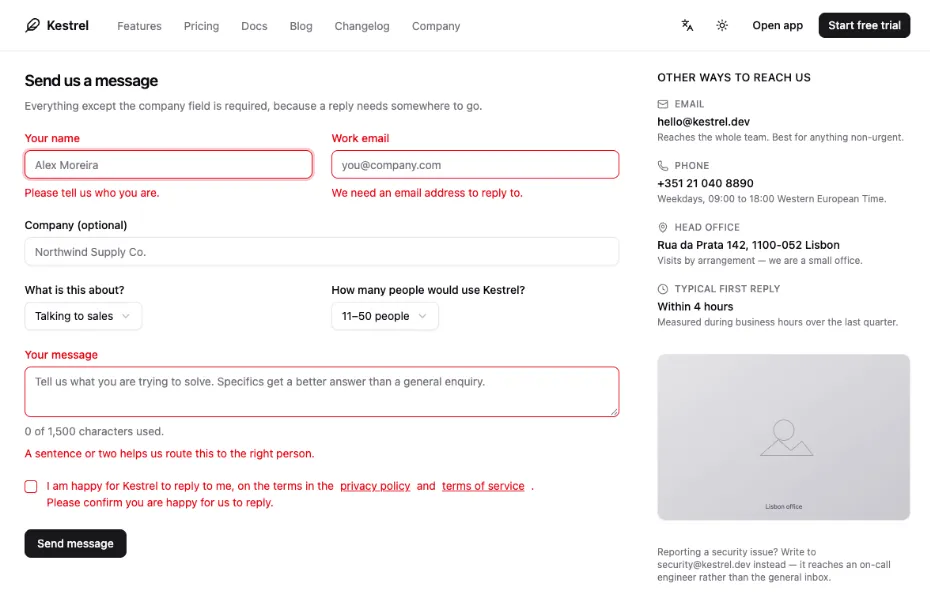
- Captures the states people skip. The agent brings the app into states that rarely get a manual screenshot – a form showing its error messages, an open dialog or menu – and captures each one as its own screen.
- Runs again in two commands. The capture setup lives in your repository, and each re-run updates screenshots in place.
- Measures itself. Every run starts and ends with a count of strings that still have no screenshot.
How screenshot automation works in five steps
The agent does the repetitive work, and the developer stays in control of the decisions. Nothing is written to Crowdin or the repository before the developer approves the plan. Green steps are yours, purple ones are the agent’s.
Inventory
- Asks Crowdin which strings have no screenshot yet
- Groups them into screens using your app's routes and navigation
Review the plan
- Shows you the screens it plans to capture
- You drop the ones that don't matter, and nothing runs before your yes
Sign in once
- You sign in to your app in the browser or simulator
- Your password never passes through the agent
Write the capture
- Writes one test or flow per screen: Playwright, Maestro, or XCUITest
- Commits it to your repo, ready for the next release
Capture and upload
- Runs the capture and checks a sample for spoiled shots
- Uploads every image to Crowdin and auto-tags the strings on it
Skill plans one screenshot per screen, so a thousand strings collapse into a few dozen screens. Tabs, open menus, and form error states count as screens of their own. That’s how the hard-to-reach strings get covered.
When the upload is done, the count runs again. Every string that still has no screenshot lands in one of four groups:
- Placeholder and plural strings. They are on screen, but auto-tag reads the rendered text and can’t match it to a string with placeholders. You can tag them by hand in the Editor.
- Strings that never appear as pixels, such as alt text.
- Reachable states not captured yet. They become new screens for the next run.
- Strings the app never renders, such as emails and feature flags.
The finish line is a clear list of what’s left and why. Some of those strings need one more screenshot, and some never will.
What a run looks like
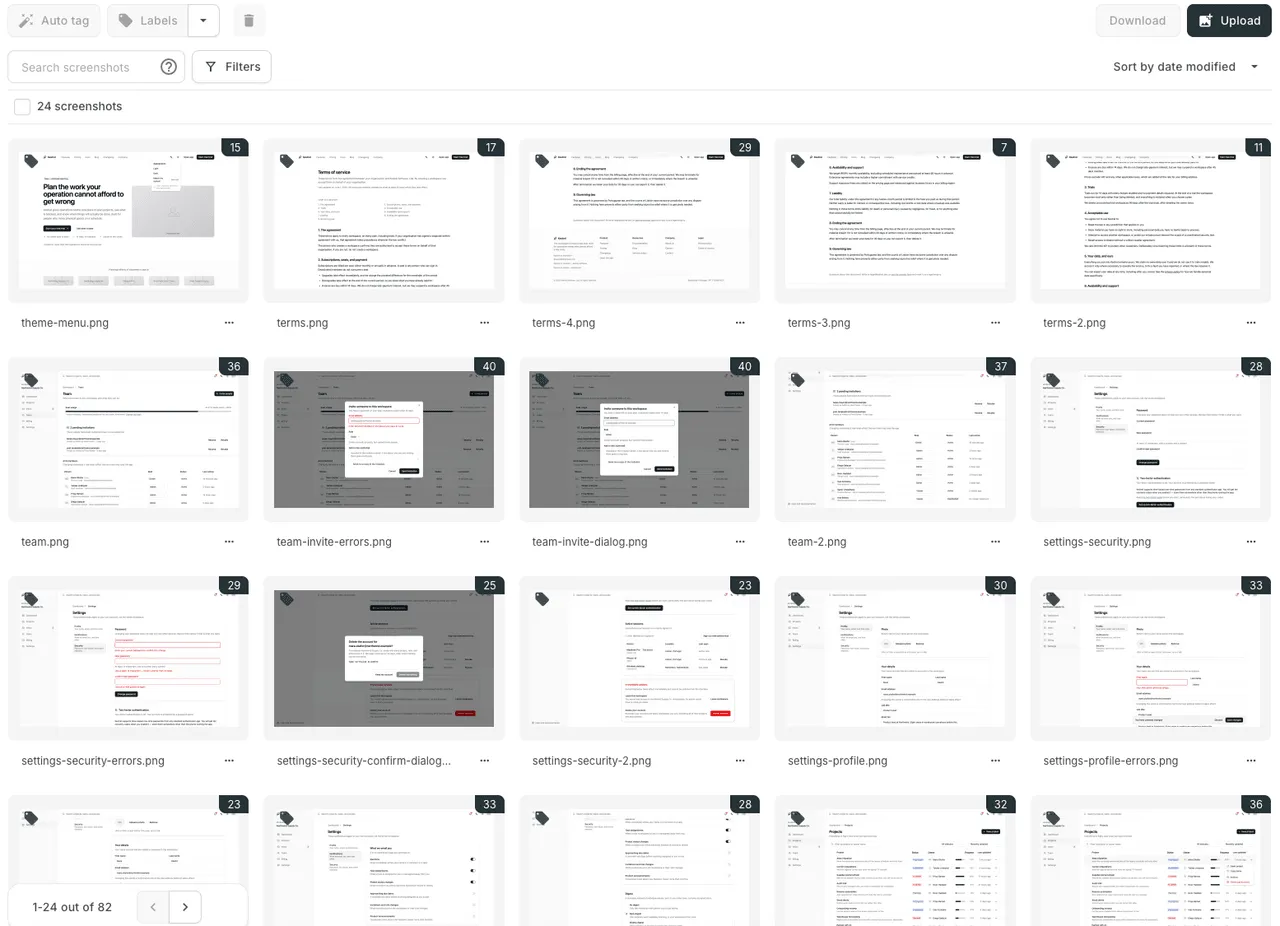
We ran the skill on a demo web app whose Crowdin project had no screenshots yet. The whole session took about 20 minutes – far less than a developer would need to walk through 82 screens by hand. After the plan was approved, it came down to a few commands:
$ crowdin string list --croql 'count of screenshots = 0' -o toon  1100 strings
$ crowdin screenshot list  No screenshot found
$ npx playwright codegen --save-storage=.crowdin/auth.json http://localhost:3000  (the developer signs in and closes the window)
$ npx playwright test -c playwright.crowdin.config.ts
$ crowdin screenshot upload .crowdin/screenshots --auto-tag  ...  82 screenshots uploaded
$ crowdin string list --croql 'count of screenshots = 0' -o toon  488 strings
The first pass delivered:
- 82 new screenshots in Crowdin
- Strings without a screenshot down from 1,100 to 488
- A tag on every image: 5 to 43 tags each, 1,913 in total
- Two spoiled shots caught and re-shot: the agent reviewed 13 of the 82 images and found a form heading hidden under a sticky header and an accordion captured mid-animation
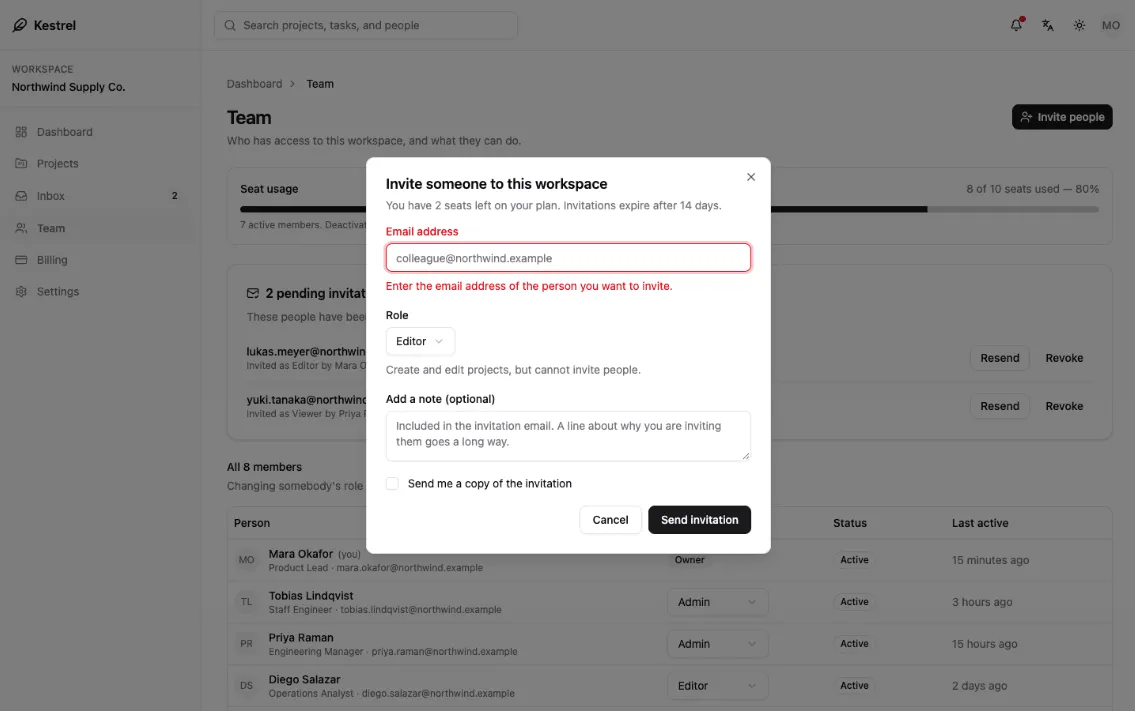
Some of the most useful shots are ones a person rarely thinks to take. The agent submitted forms empty to bring up their error messages and opened the confirmation dialog before deleting an account. Each state became its own screenshot, so strings that appear only when something goes wrong got context too.
The report then sorted the remaining 488 strings by cause:
| What’s left | Examples from the run | More screenshots? |
|---|---|---|
| Tabs and dropdowns that weren’t opened | Feature tabs past the first one; status and sort options | Yes, a few extra shots |
| Validation messages beyond the empty form | Invalid email, text too long, mismatched passwords | Yes, several form states |
| Other content pages | More blog posts, careers roles, pricing data | Yes, at lower value |
| Toasts | ”Link copied” | Yes, though they disappear quickly |
| Alt text and accessibility labels | Logo and map descriptions | No, they never appear as pixels |
| Plural and interpolated strings | ”2 projects selected” | No, they are already on screen; tag them by hand in the Editor |
The next step is clear from the table: a few more screens for the reachable states, manual tags for plurals, and nothing for the strings that never appear on screen.
Built for the next release
File name is a screenshot’s identity in Crowdin. Upload settings-profile.png again, and the new image replaces the old one in place and keeps its ID. A re-run after a redesign creates no duplicates and needs no deletions. The same screen on two platforms gets two names, such as settings-ios.png and settings-android.png. The upload folder holds only the screens captured in the current run, so screenshots nobody re-shot keep their tags.
The capture itself stays in your repository. Spec file records which screens exist and how to reach them, and it goes through pull request review like any other code. After the next release, you run the same two commands for the screens that changed.
Skill captures with your platform’s own tooling and picks what your project already has:
| Platform | Engine | When the skill uses it |
|---|---|---|
| Web | Playwright | Default for any web app. One test per screen, with its own config, so your normal test run never sees it. |
| Mobile | Maestro | Default for iOS, Android, React Native, and Flutter apps without UI automation of their own. One YAML flow per screen. |
| Native iOS | XCUITest | Only when the project already has a UI test target. |
| Expo | screenmap | Only when the project already uses it. |
| Desktop | Computer use | For desktop apps, a few one-off states, or teams that want no test code. Nothing lands in the repo, so each re-run needs a new session. |
Any engine that writes named PNGs into the folder works, so teams on Detox, Espresso, or Flutter integration tests keep their tooling. When no engine can run on the machine, the skill switches to publish-only: you drop your own screenshots into the folder, named after the plan, and the skill uploads them and reports coverage.
Where teams use it
- First screenshots ever. A project with hundreds of strings and no screenshots gets a few dozen screens in one session, plus a committed capture to keep them current.
- After a redesign. A top-up run captures only the new and changed screens. Same file names, so old images are replaced, and nothing is duplicated or deleted.
- Mobile on two platforms. The same Maestro flows run on iOS and Android. Captures carry a platform suffix, so translators see both layouts where they differ.
- Onboarding to Crowdin. The i18n-setup skill offers screenshots as an add-on at the end of setup, right after strings are uploaded and textual context is written.
- Screen-by-screen translation. Screens Translation shows screenshots instead of files on the language page, so translators work one screen at a time. This skill keeps those screens current.
- Desktop apps without test code. For an Electron app, for example, an agent with computer use walks the app itself and captures it with the machine’s own commands. The report keeps the screen list, so the next run starts from a plan.
How to get started
To run the skill, you need:
- A project connected to Crowdin through the Crowdin CLI, with crowdin.yml holding the project ID and strings already uploaded
- A terminal with the CLI authorized
- An app that runs locally
- An AI coding agent that loads Agent Skills, such as Claude Code, Cursor, Codex, Gemini CLI, or GitHub Copilot
Install it with the rest of the Crowdin Skills, or on its own:
npx skills add crowdin/skills --skill generate-screenshotsgenerate-screenshots is part of crowdin/skills. Its sibling skills cover the rest of the setup: crowdin-cli for every CLI command, context-extraction for textual string context, and i18n-setup for the path from hardcoded strings to a connected project.
More guides on working with Crowdin from your coding agent:
- How to generate and pass AI context for translations via CLI – textual context for every key, the companion to screenshots
- How AI agents can search and filter localization resources using Crowdin skills – CroQL and GraphQL queries, like the one the skill uses to find strings without screenshots
- How to extract missing i18n keys and translate them via CLI – a CLI-driven pipeline with Lingui and Crowdin
Give every string its screen
A string without its screen leaves translators and AI models to guess. With generate-screenshots, your coding agent captures the screens, Crowdin links each one to the strings on it, and the next release takes two commands. Translators see where every word lives, AI translation gets the same visual context, and people stay in control of the calls that need their judgment.
Install the skill from crowdin/skills and run it on your next release. New to Crowdin? Start a free trial.
Localize your product with Crowdin

Crowdin Team