

This August was about giving your AI agent the whole Crowdin toolkit. The MCP Server already lets an agent access your projects, now it has the tools to work in your codebase too. Crowdin CLI 5.0 is a complete rewrite that starts in milliseconds and speaks JSON and TOON. Four new Crowdin Skills came with it, including i18n-setup, which takes an app from hardcoded strings to multilingual on its own. Crowdin Assistant (formerly Copilot) can now build an AI Pipeline from a plain-language description, and you can add to a request while it’s still going.
There are changes across the rest of the product too: a much faster Editor and file manager on large projects, the first round of accessibility improvements, a Variables tab in the Figma plugin. We also shipped an Adobe Experience Manager connector. Let’s dive into the details.
Agentic localization management
In June, we shipped the Crowdin MCP Server, which connects an AI agent to your Crowdin account. This month we expanded what an agent can do with it: four new Crowdin Skills – i18n-setup, glossary-generation, crowdin-cli, and github-action – and the whole set packaged as one plugin you can install into your agent.
i18n-setup: from hardcoded strings to continuous translation
A new skill for AI coding agents, i18n-setup takes a JavaScript or TypeScript project from hardcoded strings to translations syncing continuously through Crowdin. One prompt – “Internationalize this app and connect it to Crowdin” – covers setting up the i18n library, wrapping every user-facing string, writing crowdin.yml, the first upload, translator context, a starting glossary, and CI sync.
Detect
- Scans your repo without changing anything
- Finds your framework, any existing i18n setup, and every file with hardcoded text
Decide
- Asks everything a human should control: languages, library, scope, branch
- Writes a plan you approve before anything runs
Set up and wrap
- Installs and configures the i18n library
- Goes through every source text in the project and implements i18n
- Writes your project's i18n rules into the repo
Connect to Crowdin
- Sets up the Crowdin CLI and writes crowdin.yml
- Proves the configuration works, then uploads your source files to Crowdin
Context and glossary
- Enriches your strings with context so translators and AI aren't guessing
- Drafts 10-30 glossary terms from your own strings, and uploads them to your project once you've reviewed them
Continuous sync
- Sets up a GitHub Actions workflow so new strings go to Crowdin and translations come back as pull requests
- Ends on proof: translations render in your app in every language you set up
The rules stay in your repo. The skill writes your project’s i18n conventions into the repo, so future edits (yours or an agent’s) don’t reintroduce hardcoded strings.
Translators get context from day one. Strings that make no sense on their own – plurals, alt text, unguessable placeholders – get context written from the surrounding code and uploaded to Crowdin as AI context. Then a second new skill, glossary-generation, pulls 10-30 terms from your source strings and uploads them once you’ve reviewed the draft. It never invents translations – source-language terms only – and if your project already has a glossary, the terms are merged into it. It also works standalone on any connected Crowdin project, so you can run it on projects you set up long ago.
It plans before it runs, and it can pick up where it stopped. The skill writes out every step it intends to take and waits for your approval. As it works, it ticks steps off and verifies each phase before moving on. If a run is interrupted, it reports how far it got and continues from the first unfinished step instead of starting over.
Already internationalized? Say so, and the skill detects your i18n framework and skips straight to the Crowdin side. Your library stays, your locale folder names stay, and the config is written to match your layout.
Supported in v1: JavaScript and TypeScript with Lingui, on whatever framework you build on. Find more details in the skill repository.
crowdin-cli and github-action
crowdin-cli skill packages the crowdin.yml patterns, the core sync workflow, output formats, exit codes, and the v4 → v5 migration, so an agent doesn’t learn the CLI by trial and error. The github-action skill does the same for the Crowdin GitHub Action. Both are updated for CLI 5.0 and GitHub Action v3.
What else the library covers
The set also covers the work that follows setup: AI context enrichment, writing and fixing CroQL and GraphQL queries, using the JavaScript API client for scripts, and building your own Crowdin app from a plain description of what it should do. All of them trigger on plain language, so you describe the task rather than name the skill. The full list is in the documentation.
Everything ships as one plugin for Claude Code, Claude Cowork, Codex, Gemini CLI, Cursor, GitHub Copilot, and other agents, with the Crowdin MCP Server bundled in. Install instructions for each agent are in the skill repository.
Crowdin CLI 5.0: now agent-first
Crowdin CLI 5.0 is out – a complete rewrite from Java to TypeScript, powered by Bun. Commands, the crowdin.yml configuration file, and exit codes stay the same, so most workflows carry over unchanged. What’s new in 5.0:
Built for AI agents. The new global -o, --output option sets the format for any command. json pipes into jq or any script. toon (Token-Oriented Object Notation) carries the same data in about 60% fewer characters and costs fewer tokens. In both modes, stdout carries nothing but data. Fast startup, deterministic output, and stable exit codes are what make an agentic workflow practical rather than expensive.
There’s also a crowdin-cli Agent Skill, so agents now get the correct crowdin.yml structure and CLI commands up front, instead of guessing at them through trial and error. More below.
Millisecond startup. crowdin --version went from 223 ms to 1.6 ms. You won’t notice 200 ms once. An agent calling the CLI dozens of times in a row will, and so will your CI pipeline. Startup is just the easiest thing to measure: in our own projects a typical sync runs about three times faster than with CLI 4.x, though exact gains depend on project size and network.
No Java required. CLI 4.x was a 7 MB jar that needed a few hundred megabytes of JRE installed and kept up to date. CLI 5.0 ships as a single self-contained binary for macOS, Linux, and Windows – download it and run it, nothing else to install or patch.
Install with npm install -g @crowdin/cli, or via Homebrew, WinGet, Chocolatey, Docker, and Linux package repositories.
Also in 5.0: auto-translate (formerly pre-translate) with full API-level control, autocompletion for zsh, bash, fish, and powershell, and a reworked interactive mode. Benchmarks, breaking changes, and migration steps are in the release post.
GitHub Action v3 is out too, and it runs on CLI 5.0 – so your CI picks up the same startup time and the same lack of Java.
Crowdin Assistant updates
Two changes to Crowdin Assistant this month: it can now build an AI Pipeline for you, and it no longer makes you wait between messages.
Describe your AI pipeline, and Crowdin Assistant builds it
Crowdin Assistant can now build the pipeline with you. Instead of assembling a multi-step AI Pipeline prompt field by field, describe what you want in plain language. Crowdin Assistant reads your project first – languages, the file types you actually have, whether screenshots are tagged – and only offers steps your project can support. Then it asks a few short questions about ambiguity filtering, QA checks, and language-specific rules.
Nothing is created until you approve it. You get a plan of the whole pipeline, every step with its scope and model. Crowdin Assistant validates the configuration before saving, so a broken pipeline doesn’t surface halfway through a run.
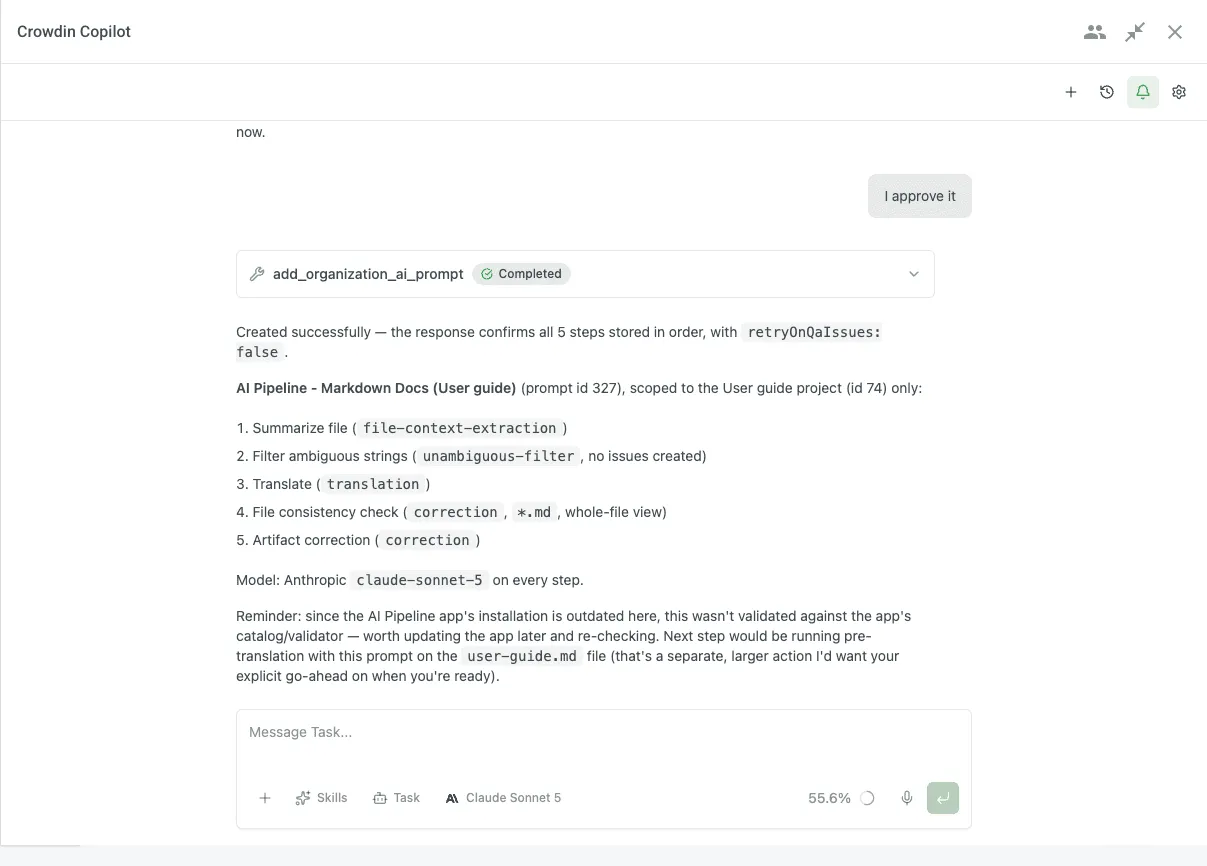
It works on existing pipelines too – add a step, drop one, reorder them, or reuse a pipeline that already does what you described.
Crowdin Assistant chat: mid-response messages, a queue, dictation, and completion sounds
Working with Crowdin Assistant no longer means waiting for it. Send a correction while a response is still being written, queue up what comes next, and get a nudge when a long task finishes – so you can start something and go do your own work.
Send while Crowdin Assistant is working. Type at any point during a response and Crowdin Assistant picks up your message as part of the task it’s already running, attachments included. A correction lands while it still matters, instead of after the work is finished the wrong way.
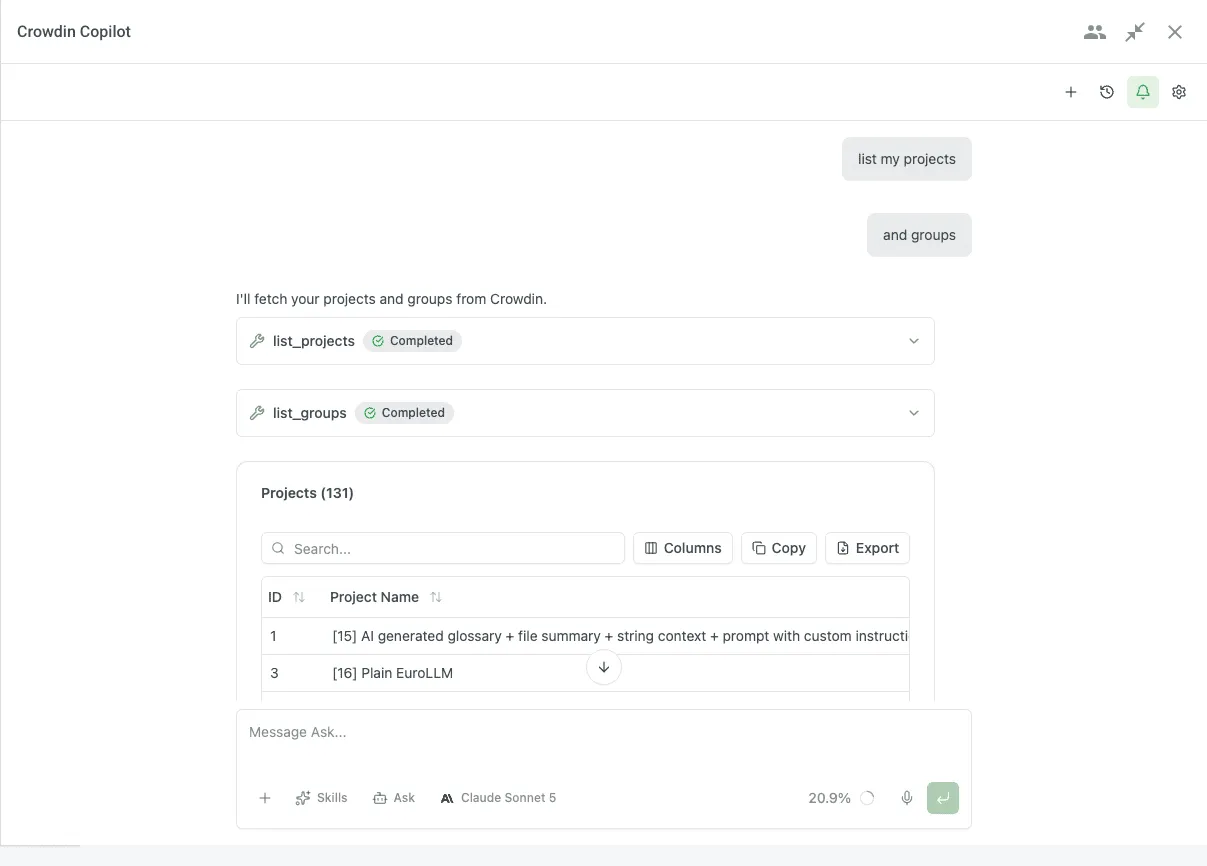
Queue what should wait. Press Ctrl/Cmd+Enter and your message joins a visible queue in the message box, where you can edit, reorder, or remove it before its turn. Line up three tasks, then walk away.
Dictate instead of typing. A new mic button next to Send (Ctrl/Cmd+Alt+V) turns speech into text as you talk. It uses your browser’s built-in speech recognition.
Turn on Completion sound, and Crowdin Assistant lets you know when it has finished a reply while the chat isn’t in focus.
Crowdin Assistant’s built-in skills
Crowdin Assistant’s built-in skills are now listed in the Crowdin Store, so you can see what it’s capable of before you ask:
- Style Guide Creation – drafts a style guide from your real translations rather than a template, keeping only the rules backed by repeated evidence
- Glossary Terms Extraction – mines your source content for glossary candidates
- String Management – adds, edits, and removes source strings
- Cross-Project Search – finds strings, translations, files, and branches by text across every project
- AI Pipeline Prompt Design – designs and edits multi-step AI Pipeline prompts
- AI Pipeline Pre-translation – runs AI Pipeline auto-translation and enriches string context
Nothing to install – they are already available in Crowdin Assistant.
Adobe Experience Manager connector
Adobe Experience Manager is where a lot of enterprise web content lives – pages, campaign assets, product copy, managed by marketing teams rather than developers. Getting that content translated has traditionally meant exports, spreadsheets, and someone tracking who has which file.
We built our own AEM connector, and it’s out now. It installs into your AEM as a Cloud Service environment and lives in the author environment, so your team never leaves AEM to get content translated.
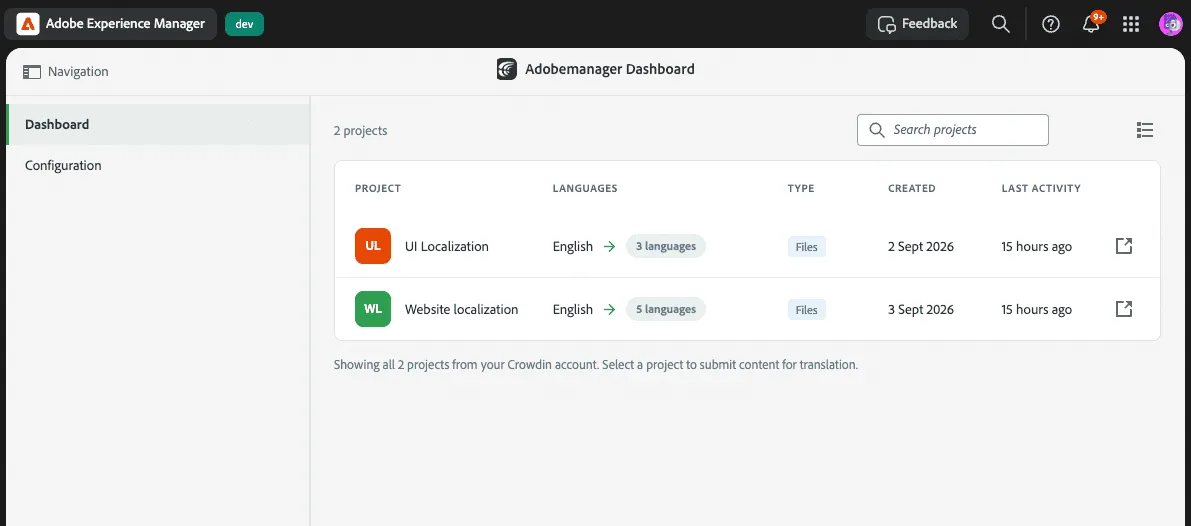
What it does
- Send pages, experience fragments, and content fragments to Crowdin for translation
- Watch each item move through Pending → In translation → Translated → Imported, right from the AEM project page
- Get finished translations imported straight back into the right language copies, with internal links and asset references pointing at the correct language
- Control exactly which properties and references get sent, using your existing AEM translation rules
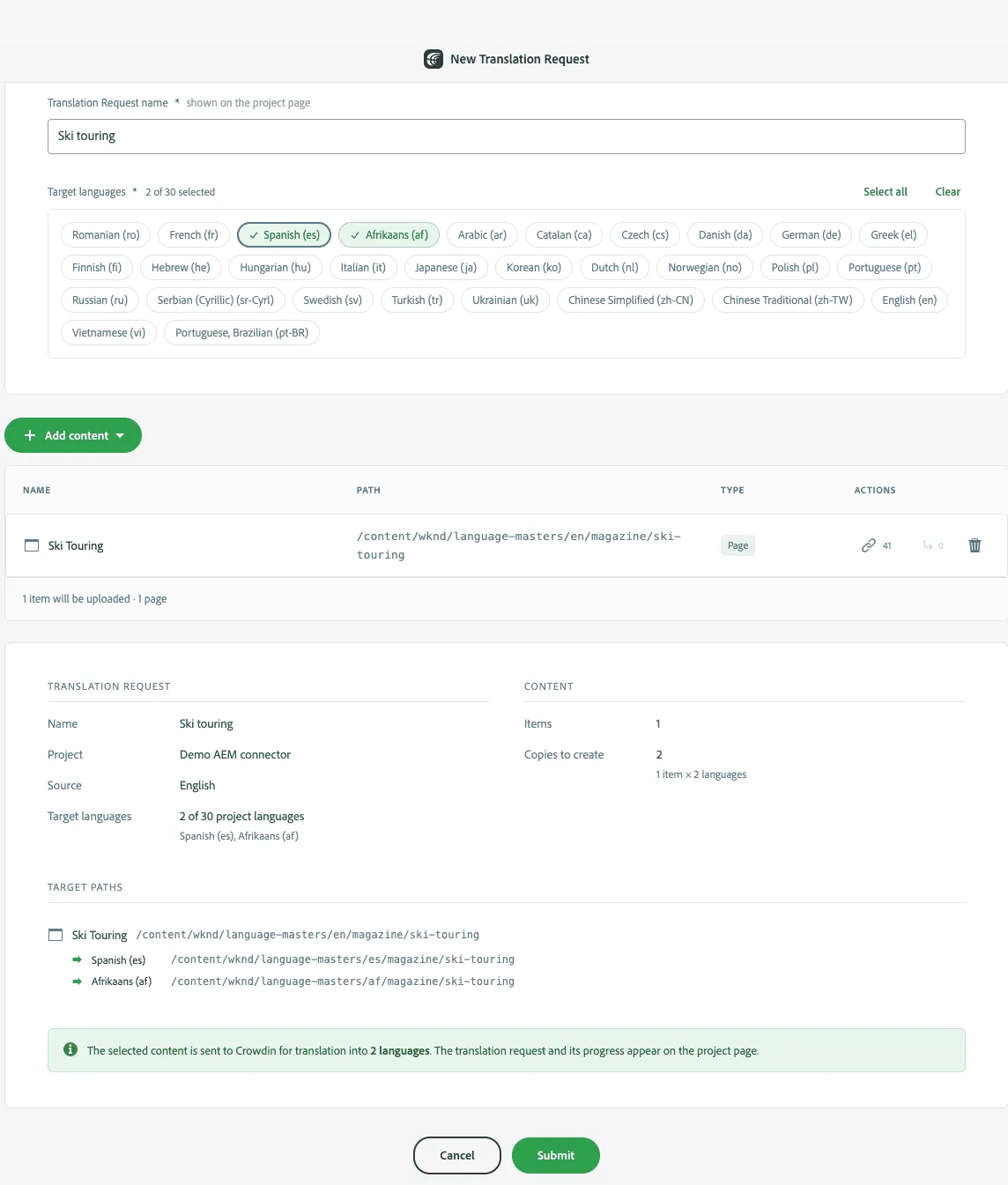
Available for AEM as a Cloud Service, with on-premise support on the way. A full announcement is coming soon.
Bring Crowdin into your AEM environment
A faster Editor on your biggest projects
The Editor is now much faster on large projects.
Opening a large project. The Editor used to build the entire file tree up front, whether you could see it or not – it now renders only what’s on screen and loads the rest as you go.
Typing and clicking. Placeholder, tag, and QA highlighting accounts for most of what’s on a phrase list page, and every keystroke used to repaint all of it instead of the row you were in. Highlighting now lives only in the rows near your viewport, which makes keystroke response about twice as fast in Side-by-Side.
Scrolling in Grid View does about half the work it used to, and turning a page went from 0.80 s to 0.59 s.
Same views, same shortcuts, same settings. All numbers come from the same scenario run before and after each change on real large projects.
Navigate large file structures without the wait
The Sources > Files page and every file picker now open right away, no matter how many files your project holds. Crowdin loads only what you are looking at: the top level first, then each folder’s contents when you expand it. Progress percentages arrive separately, so the structure is on screen while they’re still being counted.
Search still covers the whole project, not just the part that happens to be loaded. Type part of a file name and Crowdin searches the entire tree on the server, then shows matching files together with the folders that hold them – including folders you’ve never opened. Folders with very large contents load in batches, with a Load more button that shows how many items remain.
The same applies everywhere you pick files: tasks, pre-translation, bundles and distributions, report filters, the Strings page filter, and screenshots.
Nothing to configure – this mode turns on automatically for projects large enough to need it. One thing to expect: the Files page no longer restores the folders you had open last time. It starts collapsed, so nothing loads until you ask for it.
Accessibility improvements in the Editor
We have started improving accessibility in the Crowdin Editor, using the Web Content Accessibility Guidelines as our reference. Keyboard navigation, screen reader support, visible focus, and text that scales without breaking the layout are the first areas we have worked on, with more to come.
Decide exactly what gets translated in your Office documents
Word, Excel, and PowerPoint files are rarely translatable end to end. A contract template carries internal notes in grey text, a workbook keeps a finance-only tab in a specific fill color, a deck has SmartArt labels that were never meant to leave English. Until now, everything came in, and translators had to work out what to skip.
Parser Configuration tab in your file settings now lets you exclude content by paragraph style, highlight color, font color range, or cell fill color – or flip it around and translate only what matches. You can also bring in what used to stay invisible: document properties, comments, headers and footers, worksheet names, hidden text, alt text, SmartArt, and slide notes.
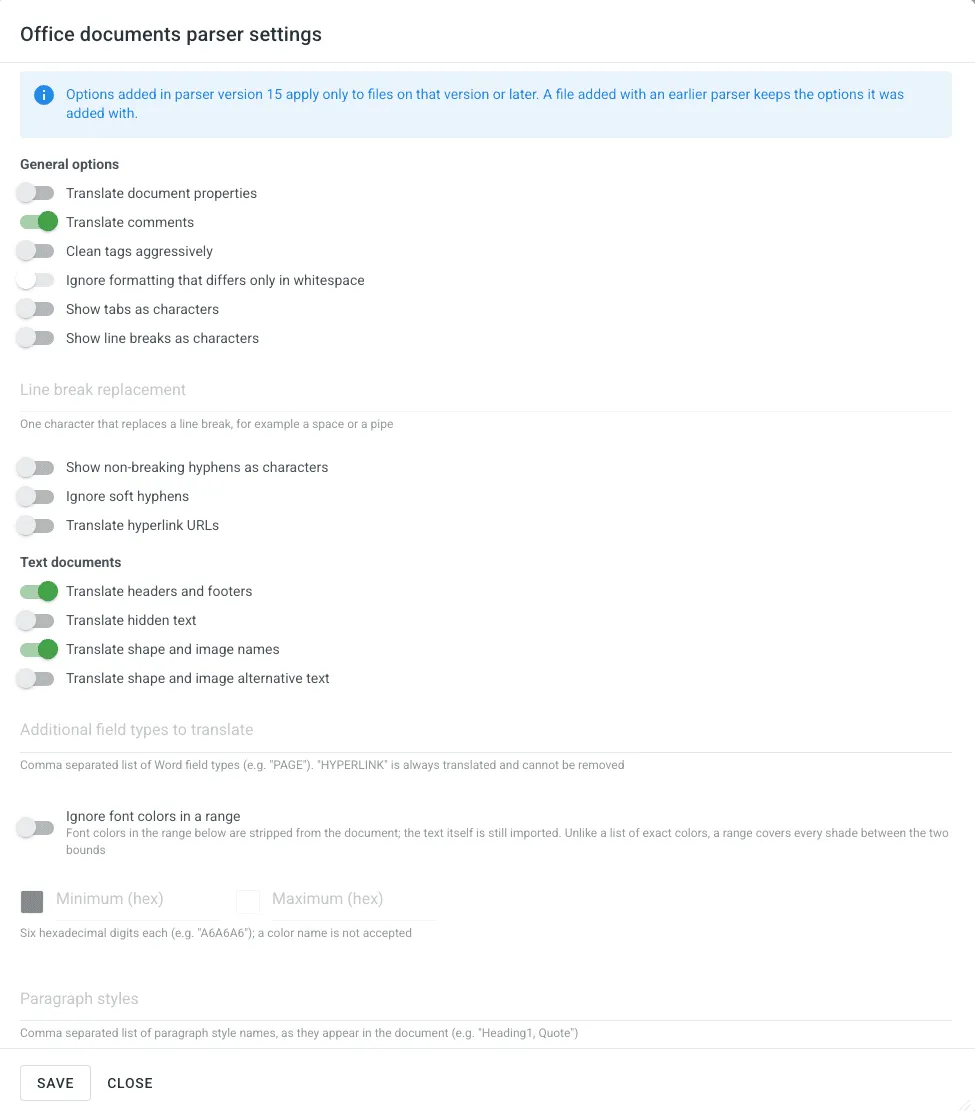
Tabs, line breaks, and hyphens can come through as plain characters instead of formatting tags, which means fewer QA warnings and less tag-juggling for your translators.
Set the options per file or once for the whole project, on both Crowdin and Crowdin Enterprise. Nothing changes for existing projects unless you opt in.
Updates for anyone building Crowdin apps
With serverless apps, which we shipped in July, you can build and host an app on Crowdin without running a backend – in practice, that means describing what you want to your agent and letting it write the thing. Three updates to that platform this month.
Apps now know who’s using them and where. An app that opens inside Crowdin gets your account details, the project it’s running in, and your roles in that project – including which languages each of your roles covers. Apps used to look that up themselves while you waited, so a quality-check app can now open straight to the languages you actually proofread instead of listing every language in the project. Nothing to turn on, and existing apps keep working. See Crowdin Apps JS.
Apps can add their own buttons to the Editor. A new editor-button module type lets an app put a button in the Editor toolbar – header, translation toolbar, or the strings menu – that opens the app’s own panel or modal, or fires an event. Buttons declare which Editor modes they appear in, so a review-only tool doesn’t clutter the translate view.
Application Storage for apps. Apps can now store data on the platform instead of running storage of their own. Both serverless and self-hosted apps read and write through the API and the SDKs. Access is scoped by key prefix and enforced by the platform, so keys under user:<id>: stay private to that user. For self-hosted apps, values written as secrets are encrypted at rest, so an app can keep API keys and tokens on the platform rather than in its own infrastructure. See the API documentation, the Serverless SDK, and the Apps SDK for the full reference.
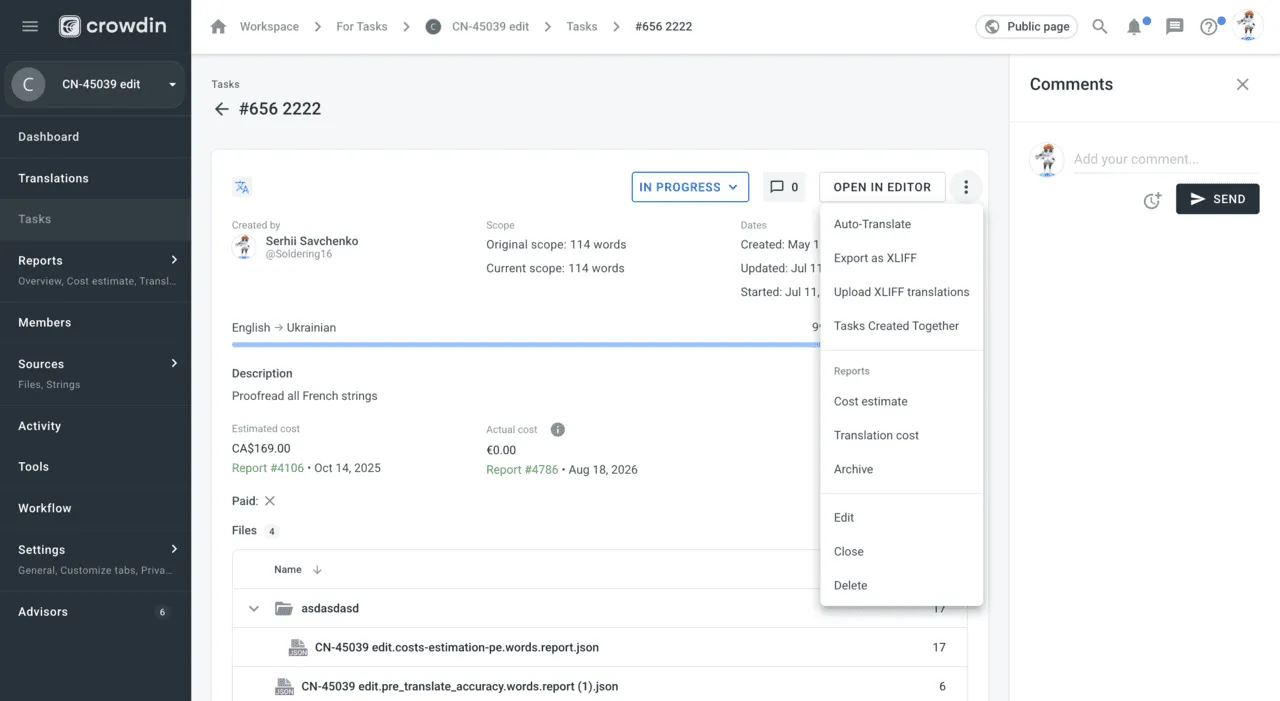
Auto-Translation for a single task
You can now run Auto-Translation on the strings of one task, in that task’s language, with nothing to select: open a translation task and choose Auto-Translate in its actions menu. The dialog opens already scoped to the task, so you don’t have to reproduce that scope with files and filters, and you can’t accidentally touch strings that belong to somebody else’s task.
Figma plugin: translate variables, switch designs between languages natively
Crowdin for Figma has crossed 10,000 users, and it keeps growing! This release adds a Variables tab, bringing localization to Figma variables. If your design system keeps its UI copy in String variables, you can send that text to Crowdin and get translations back as native variable modes – ready to switch any design to another language right in Figma.
The flow mirrors the strings flow you already know. Select your variable collections and click Send to Crowdin: the default-mode values become source strings, and the plugin can generate screenshots from the text layers that use them, so translators see the strings in context. Once translations are ready, click Sync Translations: for every target language, the plugin creates or updates a mode named after the Crowdin language code (uk, zh-CN) and fills it in. Your default mode is never touched.
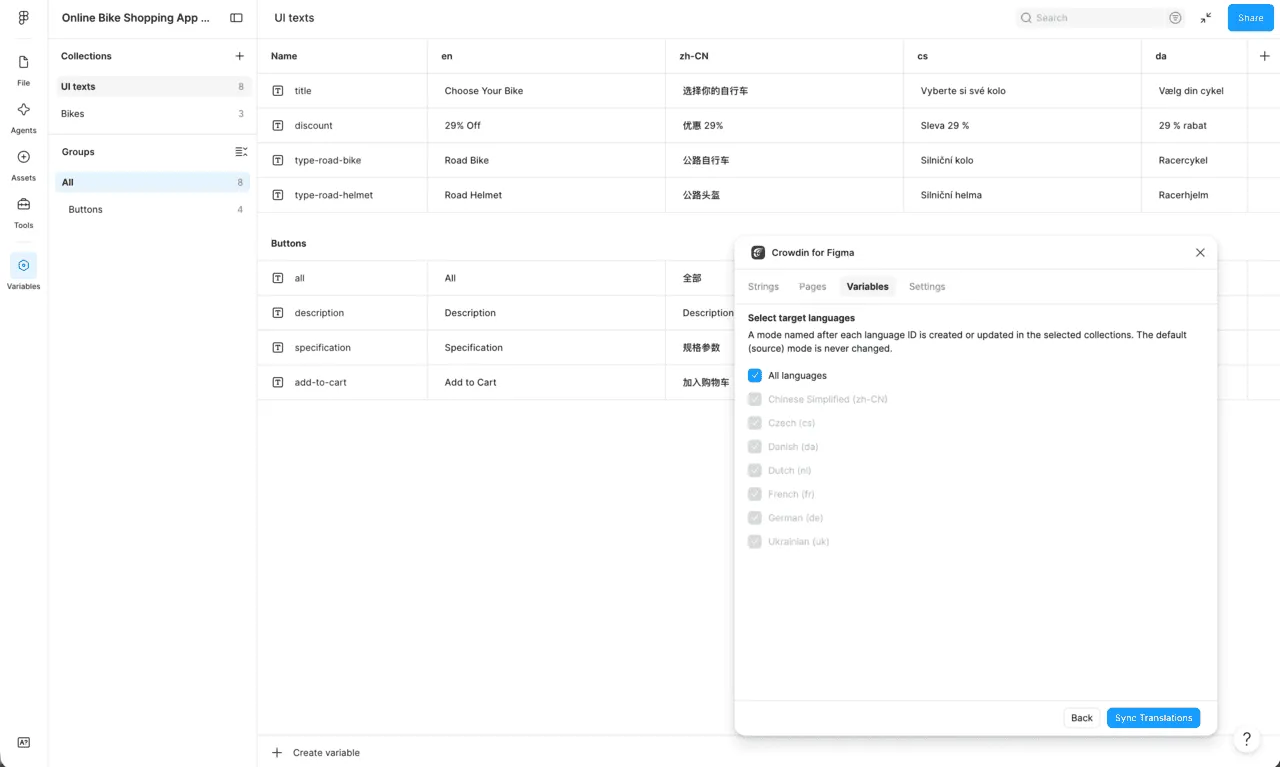
This feature covers local String variable collections. Color, Number, and Boolean variables, library variables, and values that alias other variables are skipped for now. One thing to know: the number of modes per collection depends on your Figma plan, so languages beyond the limit are skipped and reported after the sync. Full details are in the Figma plugin documentation.
Vendors now see your project labels
String labels now work across client-vendor collaboration in Crowdin Enterprise. The labels you use to organize strings in your project are shared automatically with the vendor working on your content, so both sides talk about the same set of strings.
Labels used to stop at the organization boundary – briefing a vendor on which strings needed special handling meant spreadsheets, emails, and a lot of copy-pasted string keys.
Now the vendor’s team sees your labels right where they work. Linguists can filter the Editor by a label, project managers can build a task from a label, run pre-translation on a labeled subset, and slice reports by label – exactly the way your own team already does. Rename a label, remove one, or tag more strings, and the vendor’s view follows. If your vendor subcontracts part of the work, the labels travel down the chain too.
Your labels stay yours. Shared labels are read-only on the vendor side and carry a gray Shared marker wherever labels appear, so nobody can rename or reassign what your team owns. Vendors can create and manage their own labels in the project for their internal workflow – the two sets live side by side and can even share the same name, with the marker telling them apart.
Nothing to switch on: sharing is active for every client-vendor connection, and labels appear on the vendor side within 10-20 minutes of a change. See the labels documentation for how labels work in a project.
Crowdin Store updates
- Amazon Vega PUFF-J. Crowdin now supports the
*.puff.jsonresource files that Fire TV apps use for their UI text. Install the app, pick your projects, and you can upload files and download translations with no other configuration. ICU placeholders, per-language plural forms, select and gender branches, and nested messages are all handled. - TM Cleaner has been rebuilt. The new version handles large TMs – tens of thousands of entries and more – without stalling or timing out. Merging is lossless: a combined entry keeps every language either side had, and the most recent translation for each. The app saves a timestamped backup as a separate TM before it writes anything back.
- TAUS QE: version 3 of the Quality Estimation model is now available. TAUS reports better handling of untranslated text, missing segments, idioms, and named entities, with the biggest gains on Asian, non-FIGS European, and low-resource language pairs.
- Shopify: a new Excluded fields setting keeps chosen fields out of Crowdin, and Markets to sync lets you translate market-specific content separately.
- Client portal: now supports Excel and CSV files.
Other platform updates
- XLIFF export received improvements.
- PO, CSV, MDX, and YAML imports received improvements.
- Translation savings summary report generates about twice as fast on large projects. IDML files can now have the text inside hyperlink tags translated, instead of it arriving as a non-editable placeholder.
- Vendor workflow steps in Crowdin Enterprise have more Input options: you now choose separately whether approved strings are sent, and whether a task on the step is required.
- Crowdin API now has a global search endpoint, and Crowdin Assistant uses it to search across your projects in one request.
- In-Context pseudo-language can now be selected when configuring a multilingual CSV or XLSX schema in the UI, not just through the API.
- Billing page now shows your plan limits and current usage more clearly.
- OAuth 2.0 with PKCE is now supported in the UI, so you can add SSO to a single-page app without embedding a client secret.
- Translations API now returns auto-translation details for each translation — match rate, match type, and which provider produced it.
- Hebrew plural forms now match CLDR, which defines only
one,two, andotherfor Hebrew. The extramanycategory has been removed.
New podcast episodes
Two new episodes of the Agile Localization Podcast came out this month:
- The Real Price of Ignoring Video in Localization with Stefani Vieira – why video production still runs on copy-paste while every other workflow got automated, and what changes when translators can see the animation they’re writing for.
- Where the Language Industry Is Headed with Florian Faes – Slator’s read on shrinking core translation revenue, why verification has become the central human activity, and the new terms the industry is adopting for itself.
You can listen to all episodes on Apple Podcasts, Spotify, or YouTube.
New case studies
Two customer stories came out this month:
- How Nord Security Automates Localization Under Strict Guardrails – Mantas Baraišis, Head of Localization, on running synchronized launches across NordVPN, NordPass, and NordLocker in an industry where every workflow has to hold up to security and compliance review.
- How MiQ Turned a 2-Week Localization Bottleneck into a 15-Minute Config Change – rebuilding a 15+ micro-frontend stack on Lingui and Crowdin, with over-the-air delivery that takes engineers out of the copy-update loop entirely.
External tools
This month we released new versions of:
- Crowdin shadcn UI Registry crowdin/ui-registry
- OTA Client JS 2.1.1
- JS API Client 1.56.3, 1.56.4
- Android SDK 1.18.3
- PHP API Client 1.24.0
- Python API Client 1.28.0
- Flutter SDK 1.1.2
That’s August. September is already in progress – see you then.
Localize your product with Crowdin

Crowdin Team