

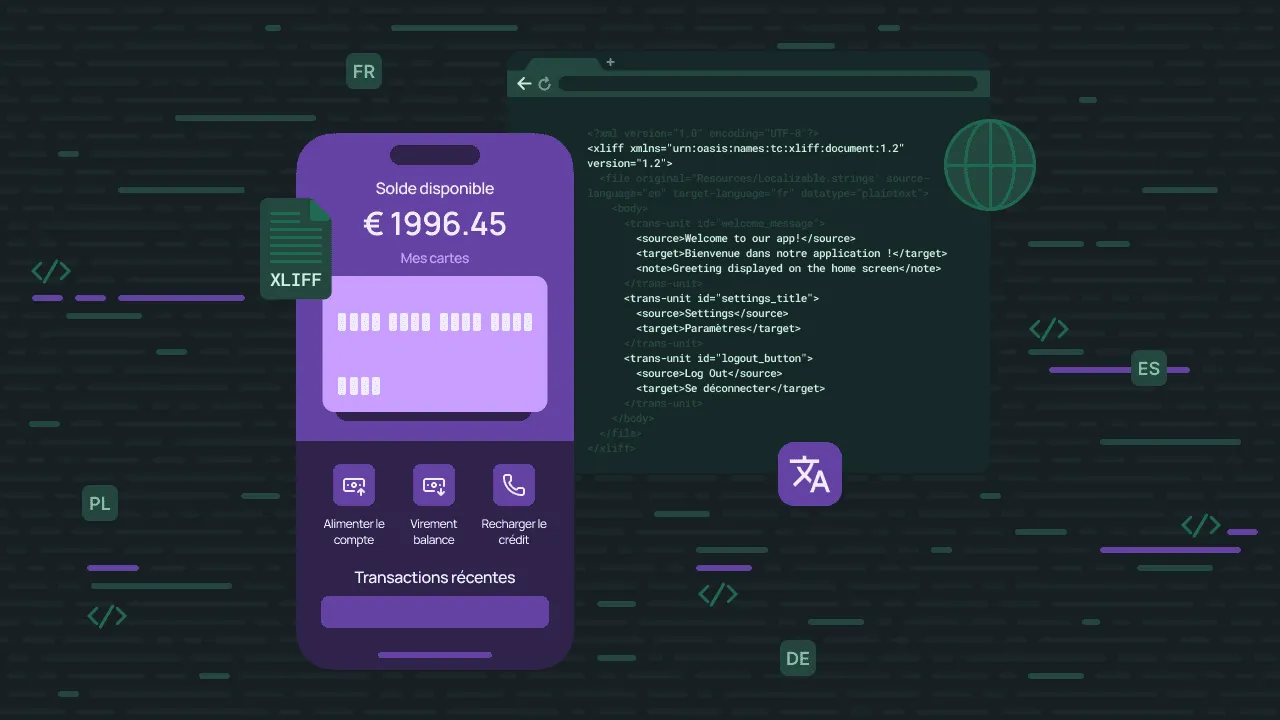
If you have ever shipped an app that crashed because a translator changed %1$s to %1, or deployed a build where every accented character was rendered as ̩ Рyou already know why XLIFF matters.
XLIFF (XML Localization Interchange File Format) is not just “another XML format”. It is a container that locks your string keys, protects your format specifiers, and preserves your file structure — while exposing only the translatable text to translators. It is the layer between your codebase and every person who will never read your source.
This guide is the result of hands-on experimentation: generating real XLIFF files from iOS and Android projects, testing IDE support across Xcode, Android Studio, VS Code, and IntelliJ, auditing XLIFF 2.0 adoption across CAT tools, and documenting every error that can corrupt a localization file.
Here is what you will learn:
- When to use XLIFF 1.2 vs. 2.0 (and why Xcode forces your hand)
- How XLIFF 2.0 inline elements prevent the runtime crashes that XLIFF 1.2 cannot
- The exact Xcode export/import workflow and its limitations
- Why Android Studio has no native XLIFF support and what to do instead
- The 7 most common XLIFF errors with real broken-vs-fixed examples
- How to automate localization with a TMS and CI/CD
No fluff. No what is localization preamble. Let us go.
XLIFF 1.2 vs. XLIFF 2.0: the version decision
XLIFF 1.2 has been the industry workhorse for two decades. XLIFF 2.0 is its ISO-standard successor (published 2014, updated to 2.1 in 2018). Both are XML-based. Both carry source and target strings. The differences are structural and practical.
Side-by-side: same string, both formats
Source string (Android): Hello, %1$s! You have %2$d new messages.
XLIFF 1.2:
<trans-unit id="welcome_user" resname="welcome_user"> <source>Hello, %1$s! You have %2$d new messages.</source> <target>Hallo, %1$s! Du hast %2$d neue Nachrichten.</target> <note>%1$s = user name, %2$d = message count. DO NOT modify format specifiers!</note></trans-unit>The format specifiers %1$s and %2$d sit as raw text. A translator can edit, delete, or reorder them freely. The <note> is the only protection – and it depends on the translator reading it.
XLIFF 2.0:
<unit id="welcome_user" name="welcome_user"> <notes> <note id="n1" category="description">User greeting with dynamic values</note> <note id="n2" category="instruction">%1$s = user name, %2$d = message count. DO NOT modify placeholders!</note> </notes> <segment state="translated"> <source>Hello, <ph id="ph1" equiv="%1$s"/>! You have <ph id="ph2" equiv="%2$d"/> new messages.</source> <target>Hallo, <ph id="ph1"/>! Du hast <ph id="ph2"/> neue Nachrichten.</target> </segment></unit>The <ph> (placeholder) elements lock %1$s and %2$d. CAT tools render them as non-editable badges. No translator can accidentally delete $s or swap %2$d for %2. The notes are categorized (description, instruction) so CAT tools can display them contextually.
Decision matrix
| Use XLIFF 1.2 if… | Use XLIFF 2.0 if… |
|---|---|
| Your project includes any iOS/macOS code (Xcode requires it) | Your project is Android-only, web, or desktop |
| You need maximum CAT tool and legacy system compatibility | Your entire toolchain (TMS, CAT tools, scripts) supports 2.0 |
| You are integrating with existing translation workflows | You are building a new localization pipeline from scratch |
The hard truth: As of Xcode 16 and 17 (2025–2026), Apple has zero XLIFF 2.0 support. Apple introduced String Catalogs (.xcstrings) in 2023 as their preferred evolution – not XLIFF 2.0. If you have iOS in your stack, you use XLIFF 1.2 for Xcode interchange. Period.
Advanced XLIFF 2.0 features that prevent real errors
If your toolchain supports XLIFF 2.0, these features solve pain points that XLIFF 1.2 handles poorly or not at all.
Inline elements: locking what translators must not touches
XLIFF 2.0 introduces three inline element types. Each solves a specific class of translation error.
<ph> – Placeholders (format specifiers, variables)
Wraps standalone codes like %s, %d, %@ that must appear in the translation exactly as-is.
<source><ph id="1" equiv="%@" dataRef="user_name"/> sent you <ph id="2" equiv="%d" dataRef="photo_count"/> photos</source>CAT tools display this as: [user_name] sent you [photo_count] photos. The translator types around the badges. They cannot edit the placeholder content.
<pc> – Paired Code (HTML tags, formatting spans)
Wraps content that has opening and closing markers, like <b>…</b> or <a>…</a>.
<source>Get <pc id="1" type="fmt" subType="html:b">50% off</pc> your first order! <pc id="2" type="link" subType="html:a">Shop now</pc></source><target>Erhalten Sie <pc id="1">50% Rabatt</pc> auf Ihre erste Bestellung! <pc id="2">Jetzt einkaufen</pc></target>The translator sees 50% off inside a bold formatting block. They can translate the text inside, move the block, but cannot break the <b></b> tag pair. In XLIFF 1.2, these tags would sit as raw CDATA – fragile and easy to corrupt.
<sc> / <ec> – Standalone Code (independent opening/closing tags)
For cases where opening and closing tags span across segment boundaries or are not paired in the same unit:
<source>This is <sc id="1" type="fmt" subType="html:i"/>italic<ec id="1"/> and <sc id="2" type="fmt" subType="html:b"/>bold<ec id="2"/> text.</source>Categorized notes: context where translators need it
XLIFF 1.2 has a single generic <note> element. XLIFF 2.0 adds category attributes so CAT tools can filter, sort, and prominently display the right context.
<notes> <note id="n1" category="location">Checkout screen, bottom right</note> <note id="n2" category="description">Primary action button</note> <note id="n3" category="instruction">Keep short – max 15 characters for UI</note> <note id="n4" category="reference">Design: Figma > Checkout Flow > Frame 3</note></notes>In practice, this means the translator sees “max 15 characters” as a prominent constraint and “Figma > Checkout Flow” as a reference link – not buried in a single wall of text. See how context can improve translation accuracy.
State management: tracking what is done
XLIFF 2.0 defines explicit translation lifecycle states on the <segment> element:
<segment state="initial">  <source>Welcome back, we missed you!</source>  <target></target></segment>
<segment state="translated">  <source>Welcome back, we missed you!</source>  <target>Bienvenue, vous nous avez manqué !</target></segment>
<segment state="final">  <source>Welcome back, we missed you!</source>  <target>Bienvenue, vous nous avez manqué !</target></segment>
XLIFF 1.2 also supports states (needs-translation, translated, final) on the <target> element, but the 2.0 model is cleaner and maps directly to TMS approval workflows.
Groups: logical structure for plurals
Plural strings in XLIFF 1.2 get flattened into disconnected <trans-unit> elements. In XLIFF 2.0, <group> keeps them together and preserves platform-specific plural categories.
Polish plurals (3 forms: one, few, many):
<group id="items_remaining" type="x-gettext:plurals"> <notes> <note id="n1">Polish has 3 plural forms (one, few, many)</note> </notes> <unit id="items_remaining_one" name="items[one]"> <segment state="translated"> <source><ph id="p1" equiv="%d"/> item remaining</source> <target xml:lang="pl"><ph id="p1"/> element pozostał</target> </segment> </unit> <unit id="items_remaining_few" name="items[few]"> <segment state="translated"> <source><ph id="p2" equiv="%d"/> items remaining</source> <target xml:lang="pl"><ph id="p2"/> elementy pozostały</target> </segment> </unit> <unit id="items_remaining_many" name="items[many]"> <segment state="translated"> <source><ph id="p3" equiv="%d"/> items remaining</source> <target xml:lang="pl"><ph id="p3"/> elementów pozostało</target> </segment> </unit></group>The translator sees all three forms in context. The %d placeholders are locked. The group metadata tells the TMS this is a plural set, so it can enforce that all forms are translated.
iOS workflow: Xcode XLIFF export and import
Xcode has the most mature native XLIFF workflow in mobile development. It is also limited to XLIFF 1.2.
Exporting localizations
- Product → Export Localizations…
- Select target languages (e.g., French, German).
- Enable Include screenshots – Xcode attaches UI test screenshots as translator context.
- Click Export (see detailed documentation from Apple)
Xcode generates .xcloc packages (Xcode Localization Catalogs):
fr.xcloc/ Localized Contents/ fr.xliff ← XLIFF 1.2 file (this is what you send) Source Contents/ screenshots/ ← Context screenshots from UI tests Notes/ notes.txtThe generated XLIFF aggregates all localizable content (.strings, .stringsdict, storyboards, XIBs) into a single file with separate <file> elements:
<?xml version="1.0" encoding="UTF-8"?><xliff xmlns="urn:oasis:names:tc:xliff:document:1.2" version="1.2">  <file original="MyApp/en.lproj/Localizable.strings" source-language="en" target-language="fr" datatype="plaintext">    <header>      <tool tool-id="com.apple.dt.xcode" tool-name="Xcode" tool-version="16.0"/>    </header>    <body>      <trans-unit id="welcome_message">        <source>Welcome to our app!</source>        <target></target>        <note>Main screen greeting</note>      </trans-unit>    </body>  </file>
  <file original="MyApp/en.lproj/Localizable.stringsdict" source-language="en" target-language="fr" datatype="x-stringsdict">    <body>      <trans-unit id="messages/NSStringLocalizedFormatKey">        <source>%#@message_count@</source>        <target>%#@message_count@</target>        <note>Format key – should remain unchanged</note>      </trans-unit>      <trans-unit id="messages/message_count:one">        <source>%d message</source>        <target>%d message</target>      </trans-unit>      <trans-unit id="messages/message_count:other">        <source>%d messages</source>        <target>%d messages</target>      </trans-unit>    </body>  </file>
  <file original="MyApp/Base.lproj/Main.storyboard" source-language="en" target-language="fr" datatype="plaintext">    <body>      <trans-unit id="UIButton.title">        <source>Sign In</source>        <target></target>        <note>Class = "UIButton"; normalTitle = "Sign In"; ObjectID = "abc-123";</note>      </trans-unit>    </body>  </file></xliff>
Importing translations
- Product → Import Localizations…
- Select the translated
.xclocfile. - Xcode validates the XML structure and shows a diff of changes.
- Review and click Import (read more from the official Apple documentation)
Xcode updates the corresponding .lproj directory:
fr.lproj/ Localizable.strings ← Updated Localizable.stringsdict ← Updated Main.storyboard ← UpdatedCommand-line automation
For CI/CD pipelines, use xcodebuild instead of the GUI:
# Export all localizationsxcodebuild -exportLocalizations \  -project MyApp.xcodeproj \  -localizationPath ./Exports \  -exportLanguage fr \  -exportLanguage de
# Import translated localizationsxcodebuild -importLocalizations \  -project MyApp.xcodeproj \  -localizationPath ./Exports/fr.xcloc
Xcode limitations to know
- XLIFF 2.0: Not supported. Not on Apple’s roadmap. String Catalogs (
.xcstrings) are Apple’s format evolution. - Stringsdict flattening: Plural structures are broken into disconnected
<trans-unit>elements with compound IDs likemessages/message_count:one. This is technically valid but confusing for manual reading. Use a TMS that reconstructs the structure. - Silent validation failures: Some structural errors in imported XLIFF files are silently ignored rather than flagged, leading to missing translations at runtime.
- No translation memory: Xcode does not track previously translated strings. If you change a source string, the old translation is discarded.
Alternative: String catalogs (.xcstrings)
Apple’s String Catalogs (Xcode 15+, 2023) are JSON-based and handle plurals natively. They are not an industry standard and are not interchangeable with XLIFF tooling. For cross-platform teams or teams using external translators, XLIFF 1.2 remains the interchange format.
Learn more about iOS localization
Android workflow: filling the gap
Android Studio has no native XLIFF export or import. It works exclusively with strings.xml. This creates a gap in the localization workflow that you must bridge with external tools.
The problem with manual conversion
Converting strings.xml to XLIFF with ad-hoc scripts (Python, shell) introduces risks:
- Encoding corruption: Script outputs ANSI instead of UTF-8. Characters like
éandübreak. - Apostrophe escaping: Android requires
\'instrings.xml, but XLIFF stores the raw'. Scripts that do not handle this round-trip produce broken XML. - Lost attributes:
translatable="false"andformatted="false"attributes are easy to drop during conversion. - Plurals: Android
<plurals>must be flattened into separate XLIFF units and reconstructed on import. Get this wrong and the app falls back to the other form for every quantity.
What the conversion looks like
Source strings.xml:
<string name="welcome_user">Hello, %1$s! You have %2$d new messages.</string><plurals name="messages_count"> <item quantity="one">%d message</item> <item quantity="other">%d messages</item></plurals>Converted to XLIFF 1.2:
<trans-unit id="welcome_user" resname="welcome_user">  <source>Hello, %1$s! You have %2$d new messages.</source>  <target state="needs-translation"></target>  <note>%1$s = user name, %2$d = message count</note></trans-unit>
<trans-unit id="messages_count_one" resname="messages_count:one">  <source>%d message</source>  <target state="needs-translation"></target>  <note>Plural form: one</note></trans-unit>
<trans-unit id="messages_count_other" resname="messages_count:other">  <source>%d messages</source>  <target state="needs-translation"></target>  <note>Plural form: other</note></trans-unit>
Android app localization tutorial
Recommended approach: TMS-managed conversion
Instead of converting on your machine, upload strings.xml directly to a Translation Management System (TMS) like Crowdin. The TMS:
- Parses your
strings.xml, detecting<string>,<plurals>,<string-array>, CDATA blocks, andtranslatable="false"attributes. - Generates XLIFF internally for the translators (or presents strings in its own editor).
- Locks format specifiers (
%1$s,%d) so translators cannot modify them. - Runs automated QA checks: missing placeholders, tag mismatches, length violations.
- Rebuilds valid
strings.xmlfiles for every target language.
You upload XML, you download XML. The XLIFF layer is handled entirely by the platform.
7 ways to break your XLIFF file (with fixes)
These errors are drawn from real experiments with generated XLIFF files. Each includes the broken version, the correct version, and how XLIFF 2.0 or tooling prevents it.
Error 1: modified format specifiers
❌ Broken:
<source>Hello, %1$s! You have %2$d new messages.</source><target>Hallo, %1! Du hast %2 neue Nachrichten.</target>The translator dropped $s and $d. Result: IllegalFormatException crash on Android. On iOS, %1 is interpreted as a positional specifier without a type – undefined behavior.
✅ Fixed:
<target>Hallo, %1$s! Du hast %2$d neue Nachrichten.</target>- XLIFF 2.0 prevention:
– CAT tools render this as a locked badge. Translators cannot edit the specifier text. - TMS prevention: Crowdin runs QA checks that block saving if the target’s format specifiers do not match the source.
Error 2: broken HTML tags
❌ Broken:
<source><![CDATA[Accept our <b>Terms of Service</b> and <a href="privacy.html">Privacy Policy</a>.]]></source><target><![CDATA[Akzeptieren Sie unsere<b>Nutzungsbedingungen</b > und die <a href="privacy.html">Datenschutzrichtlinie.]]></target>Three errors: missing space before <b>, extra space in </b >, missing closing </a>.
✅ Fixed:
<target><![CDATA[Akzeptieren Sie unsere <b>Nutzungsbedingungen</b> und die <a href="privacy.html">Datenschutzrichtlinie</a>.]]></target>XLIFF 2.0 prevention: <pc> elements manage open/close pairs automatically:
<source>Accept our <pc id="1" type="fmt" subType="html:b">Terms of Service</pc> and <pc id="2" type="link" subType="html:a">Privacy Policy</pc>.</source>The translator types inside the <pc> wrapper. The opening/closing tags cannot be independently modified.
Error 3: wrong encoding
❌ Broken:
File saved as Windows-1252 or ANSI.
Result: Characters like é, ñ, ü, 日本語 render as é, ñ, ü, or ???.
✅ Fix:
Always ensure UTF-8. Validate before committing:
file -I your-file.xliff# Expected: text/xml; charset=utf-8Error 4: invalid XML structure
❌ Broken:
<trans-unit id="button_submit"> <source>Submit</source> <target>Absenden </trans-unit>Result: The entire XLIFF file fails to parse. Xcode shows a vague import error. Android build breaks completely.
✅ Fix:
Validate XML structure before every import:
xmllint --noout your-file.xliff# No output = valid XML# Error output = broken structure with line numberError 5: translated string keys
❌ Broken:
<trans-unit id="message_bienvenue" resname="welcome_message"> <source>Welcome!</source> <target>Bienvenue!</target></trans-unit>The id was changed from welcome_message to message_bienvenue. Result: NSLocalizedString(@"welcome_message", nil) returns the key itself because the translated file uses a different ID. The app displays literal "welcome_message" text to users.
✅ Rule:
Only translate content inside <target> tags. Never modify id, resname, or any attribute.
Error 6: empty targets marked as final
❌ Broken:
<trans-unit id="error_msg"> <source>An error occurred</source> <target state="final"></target></trans-unit>The state says final (approved), but the target is empty. Result: The app ships with blank text where an error message should appear.
✅ Fix:
Ensure states match content:
<target state="needs-translation"></target>
<target state="final">Ein Fehler ist aufgetreten</target>
Detection:
grep -E '<target.*state="(translated|final)".*></target>' your-file.xliffIf this returns results, you have empty translations marked as done.
Error 7: incomplete plural forms
❌ Broken:
Translator translated other but forgot one:
<trans-unit id="messages_count_one">  <source>%d message</source>  <target state="needs-translation"></target></trans-unit>
<trans-unit id="messages_count_other">  <source>%d messages</source>  <target>%d Nachrichten</target></trans-unit>
Result: The app displays “1 Nachrichten” (grammatically wrong – “Nachrichten” is the other form, not the singular).
✅ Fix:
Complete all plural forms for the target language. Some languages require more forms than English:
- English: 2 forms (one, other)
- French: 2 forms (one, other)
- German: 2 forms (one, other)
- Polish: 3 forms (one, few, many)
- Arabic: 6 forms (zero, one, two, few, many, other)
TMS platforms enforce completeness – they flag a translation as incomplete if any plural form for the target language is missing.
Validation checklist
Before importing any XLIFF file, run these checks:
# 1. XML structure validityxmllint --noout your-file.xliff
# 2. Encoding verificationfile -I your-file.xliff | grep -q "utf-8" && echo "✅ UTF-8" || echo "❌ Wrong encoding"
# 3. Empty translations marked as donegrep -E '<target.*state="(translated|final)".*></target>' your-file.xliff && echo "⚠️ Empty translations found"
# 4. Format specifier matching (use TMS QA – manual regex is error-prone)
IDE and TMS support matrix
This matrix is based on direct testing and documentation review as of January 2026.
| Tool | XLIFF 1.2 | XLIFF 2.0 | Native Export | Native Import | Notes |
|---|---|---|---|---|---|
| Xcode | ✅ Native | ❌ None | ✅ Built-in | ✅ Built-in | Generates .xcloc packages |
| Android Studio | ⚠️ Plugins | ⚠️ Plugins | ❌ No | ⚠️ Limited | Use TMS for full workflow |
| VS Code | ✅ Extensions | ✅ Extensions | ✅ With ext. | ✅ With ext. | XLIFF Sync, XLIFF Editor |
| IntelliJ IDEA | ✅ Native | ✅ Native | ✅ Yes | ✅ Yes | Built-in i18n support |
| Crowdin | ✅ Full | ✅ Full | ✅ Yes | ✅ Yes | Auto-converts from XML/.strings |
Automating XLIFF workflow with a TMS
Manual XLIFF handling means emailing files, praying no one opens them in Notepad, validating XML by hand, and committing broken translations at midnight. A Translation Management System (TMS) eliminates every one of these steps.
Manual vs. TMS: what changes
| Aspect | Manual XLIFF | TMS (Crowdin) |
|---|---|---|
| Error risk | High – humans edit raw XML | Low – validation enforced |
| Format specifiers | Hope the translator reads the <note> | Automatically locked in editor |
| Collaboration | Email files, track versions in Slack | Real-time web interface, comments |
| Translation memory | None – retype repeated strings | Built-in TM, auto-reuses 100% matches |
| QA checks | Manual review (or hope for the best) | Automated: tags, placeholders, length, consistency |
| Version control | Git commits of .strings/.xml | Automatic history, branching, rollback |
Setup: Crowdin CLI + configuration
Step 1: Install the CLI
npm install -g @crowdin/cliStep 2: configure crowdin.yml
For iOS projects (XLIFF via .xcloc):
project_id_env: CROWDIN_PROJECT_IDapi_token_env: CROWDIN_PERSONAL_TOKEN
preserve_hierarchy: true
files:  - source: /ios/en.xcloc    translation: /ios/%locale%.xcloc
For Android projects (direct XML):
files: - source: /android/app/src/main/res/values/strings.xml translation: /android/app/src/main/res/values-%android_code%/%original_file_name%Crowdin auto-detects the file format. For Android, it parses strings.xml directly – it generates XLIFF internally for translators and rebuilds strings.xml on export. You never touch XLIFF manually.
Step 3: the upload/download cycle
# Upload new or changed source stringscrowdin upload sources
# (Optional) Upload existing translationscrowdin upload translations
# Download completed translationscrowdin download
For iOS: after crowdin download, run xcodebuild -importLocalizations to apply the .xcloc files.
For Android: the downloaded strings.xml files are ready to use directly.
CI/CD integration: GitHub Action example
Instead of manual CLI commands, use the official Crowdin GitHub Action. This improves the synchronization of source strings and translations into a single managed step that handles installation and Git integration automatically.
name: Sync Translationson:  push:    branches: [main]    paths:      - "ios/en.lproj/**"      - "android/**/values/strings.xml"
jobs:  synchronize-crowdin:    runs-on: ubuntu-latest    steps:      - name: Checkout        uses: actions/checkout@v4
      - name: Crowdin Action        uses: crowdin/github-action@v2        with:          # Uploads new strings and downloads completed translations          upload_sources: true          download_translations: true
          # Automatically creates a Pull Request with the new translations          create_pull_request: true          pull_request_title: "chore: update translations from Crowdin"          pull_request_base: "main"        env:          CROWDIN_PROJECT_ID: ${{ secrets.CROWDIN_PROJECT_ID }}          CROWDIN_PERSONAL_TOKEN: ${{ secrets.CROWDIN_PERSONAL_TOKEN }}
What this gives you:
- Every push to main with string changes triggers an upload to the TMS.
- Translators work in the web UI with locked placeholders and QA checks.
- Translations are automatically committed back to the repository.
- You never open, edit, or validate an XLIFF file by hand.
Advanced TMS features that matter
- In-context translation: Translators see actual app screenshots alongside each string, reducing guesswork about UI constraints.
- Translation memory (TM): If you translated “Cancel” → “Abbrechen” in one project, every future project reuses it automatically.
- QA checks: The TMS flags: missing format specifiers, inconsistent tag pairs, translations longer than source (UI overflow risk), and untranslated strings marked as done.
- Over-the-Air (OTA) Updates: Deploy translation fixes instantly to user devices without a new App Store or Play Store release. The TMS SDK fetches the latest approved strings from the cloud and overrides the local XLIFF/XML resources at runtime.
- Glossary enforcement: Define that “Sign Up” must always be “Registrieren” in German. The TMS warns if a translator uses “Anmelden” instead.
- Workflow states: Map directly to XLIFF states: initial → translated → final. Reviewers approve in the UI; the TMS updates the state.
Best practices
For iOS developers
- Use Xcode’s built-in Export/Import Localizations. Do not manually generate XLIFF.
- Always export with screenshots enabled (Product → Export Localizations → Include screenshots).
- Test imported translations in the Simulator before releasing. Change the language in Settings → General → Language & Region.
- For new projects, evaluate String Catalogs (
.xcstrings) – they handle plurals natively and reduce Stringsdict complexity. - Accept that XLIFF 1.2 is your interchange format. Do not attempt XLIFF 2.0 with Xcode.
For Android Developers
- Do not manually convert
strings.xmlto XLIFF. Use a TMS that handles the conversion. - Mark non-translatable strings with
translatable="false"instrings.xml. The TMS will skip them. - Validate strings.xml after importing translations – ensure all
<plurals>forms are present and format specifiers are intact. - If your project is Android-only and your TMS supports it, request XLIFF 2.0 for the internal translation layer to benefit from inline element protection.
General Rules
- Never edit XLIFF files in a text editor. You will break XML structure, encoding, or format specifiers. Use CAT tools or a TMS.
- Validate before every import. Run
xmllint --nooutand check encoding at minimum. - Add notes for every string with variables or length constraints. Translators work faster and make fewer errors with context.
- Track translation states. Use initial → translated → final so you know what is approved versus what is pending.
- Automate with CI/CD. Connect your repository to a TMS. Manual file transfers are a liability.
- Test translations in staging. Never import untested XLIFF directly into a production build.
Conclusion
XLIFF is infrastructure. It is not exciting, it is not modern, and it is the only thing preventing a translator’s typo from crashing your app in production.
The practical reality in 2026:
- XLIFF 1.2 remains the only option for iOS projects due to Xcode.
- XLIFF 2.0 is technically superior – inline elements, categorized notes, logical grouping – but adoption is bottlenecked by Apple’s tooling.
- Manual XLIFF editing is the #1 source of localization errors: broken XML, corrupted specifiers, wrong encoding.
- TMS platforms like Crowdin eliminate manual handling entirely. They parse your native files, lock critical elements, run QA checks, and rebuild valid output files.
The modern localization workflow is:
IDE → Source files → TMS → Translators (in web UI) → TMS → Validated files → IDE
No XLIFF files on your filesystem. No email attachments. No manual validation. Set up the pipeline, connect it to CI/CD, and focus on building features instead of debugging broken translations.
FAQ
Should I use XLIFF 1.2 or 2.0?
XLIFF 1.2 if your project includes iOS code (Xcode requires it) or you need maximum compatibility with legacy translation workflows.
XLIFF 2.0 if your project is Android-only, web, or desktop and your entire toolchain (TMS, CAT tools, scripts) supports it.
Will Xcode ever support XLIFF 2.0?
As of January 2026, there is no indication. Apple introduced String Catalogs (.xcstrings) as their format evolution. XLIFF 2.0 support in Xcode is unlikely.
Can I edit XLIFF files in VS Code or Notepad++?
Technically yes. Recommended: no. The risk of breaking XML structure, encoding, or format specifiers is too high for production files. Use a CAT tool (memoQ, OmegaT, SDL Trados) or a TMS web interface.
How do plurals work in XLIFF?
Plural forms are flattened into separate translation units:
- Android
<plurals>→string_id_one,string_id_other - iOS
.stringsdict→key/format_key,key/one,key/other
TMS platforms reconstruct the platform-specific format on export, so translators see grouped plurals in the UI, not disconnected units.
What is the difference between .xcloc and .xliff?
.xcloc is an Xcode-specific package (directory) containing:
- An XLIFF 1.2 file (the translations)
- Screenshots for translator context
- Metadata and notes
CAT tools can import .xcloc directly, or you can extract the .xliff from inside the package.
Why are format specifiers different on Android and iOS?
Platform language differences:
- Android: Java/Kotlin formatting – %1$s (string), %2$d (integer)
- iOS: Objective-C/Swift formatting – %@ (any object), %d (integer)
- XLIFF preserves these exactly as they appear in the source. A TMS locks them to prevent modification.
Can a TMS convert between XLIFF versions?
Yes. Platforms like Crowdin support both XLIFF 1.2 and 2.0 for import and export. You can upload 1.2, translators work in the web UI, and you download as 2.0 (or vice versa) depending on your target platform.

Yuliia Makarenko
Yuliia Makarenko is a marketing specialist with over a decade of experience, and she’s all about creating content that readers will love. She’s a pro at using her skills in SEO, research, and data analysis to write useful content. When she’s not diving into content creation, you can find her reading a good thriller, practicing some yoga, or simply enjoying playtime with her little one.